Creating Posts in the Social Planner Social Media Tool within HighLevel


Key Takeaways
- Within HighLevel’s Social Planner tool for managing your social media, you can create posts to share across one or multiple accounts.
- You can send the posts off immediately, or schedule them to post at a later date and time within HighLevel.
Within HighLevel’s Social Planner tool for managing your social media, you can create posts to share across one or multiple accounts. You can send the posts off immediately, or schedule them to post at a later date and time within HighLevel.
NOTE: that you need to integrate your Facebook and/or Google My Business (GMB) accounts in order to post through the Social Planner. Check out our integration articles or Social Planner tutorial for more information.
Follow these steps to learn how to create, preview, and send your posts in HighLevel:
Step 1: Create a Post
- Click “Create New Post” or “New Post” to add a post.


- In the new window, choose which account you would like to post to.
- You may check one or multiple accounts.
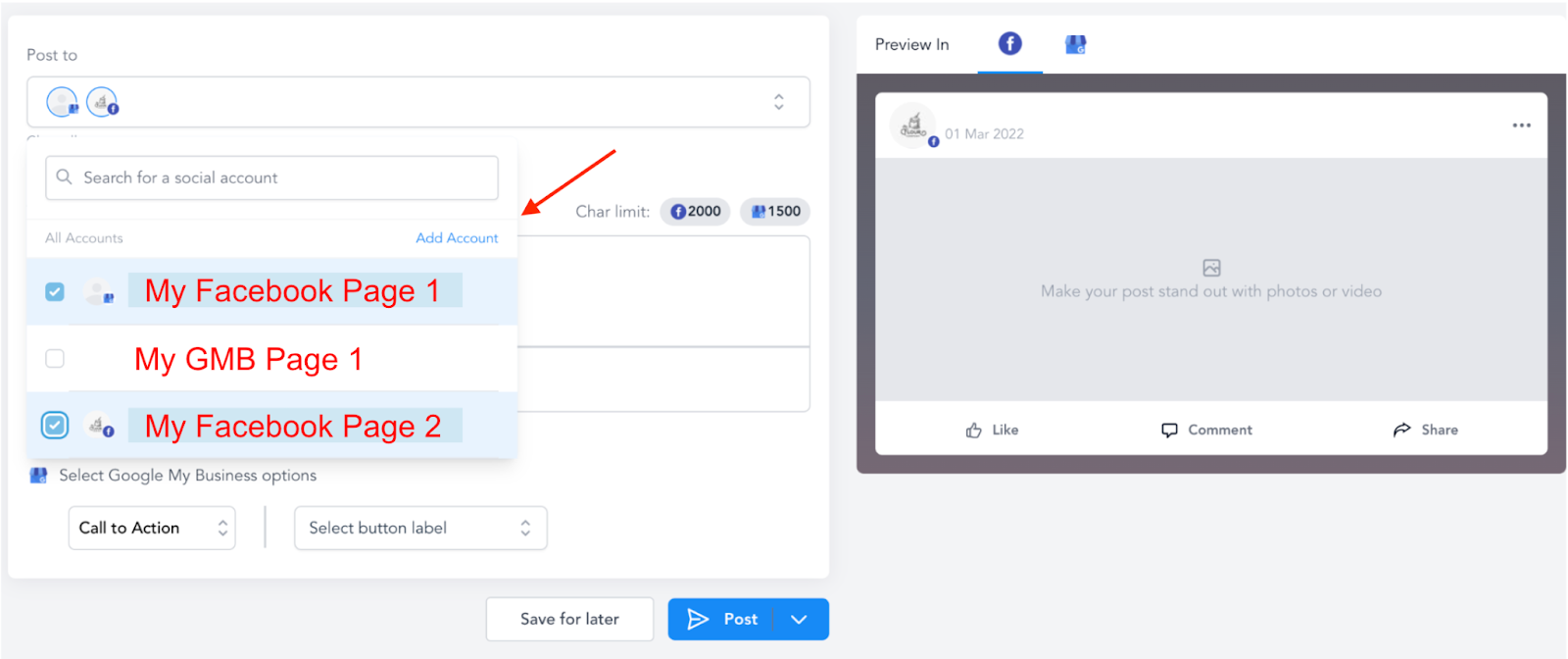
- Type out and customize the content.
Step 2: Determine GMB Posting Options
Tired of Being the Admin, the Marketer, and the Closer?
You didn't start your business to spend hours building funnels, managing calendars, and chasing follow-ups inside HighLevel. What if someone else handled all of that for you?
Our HighLevel-trained virtual assistants know the platform inside and out — workflows, pipelines, social scheduling, reporting — so you can focus on closing deals and growing your business. Starting at only $164 per week.
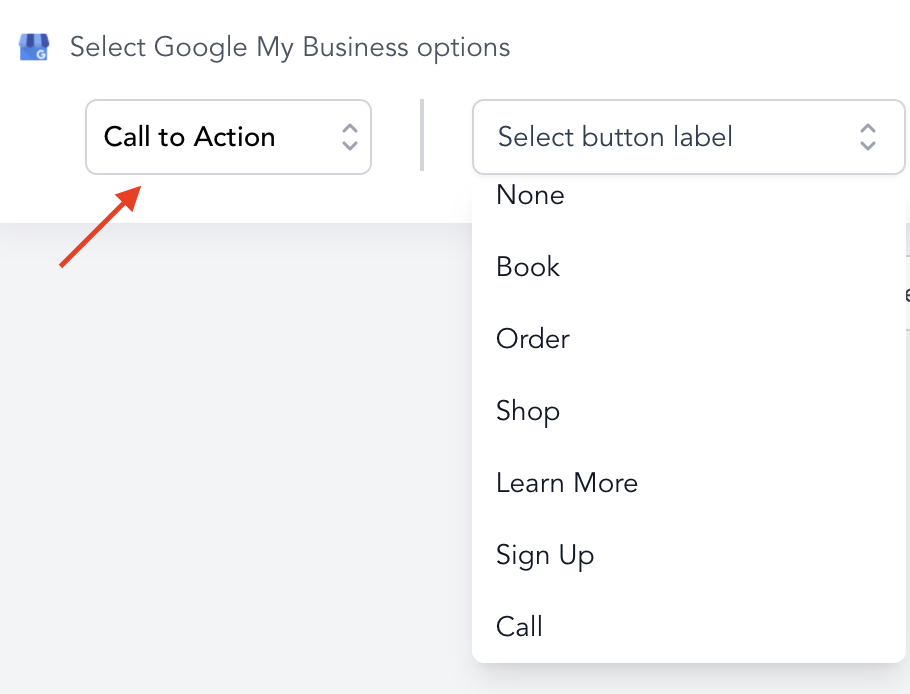
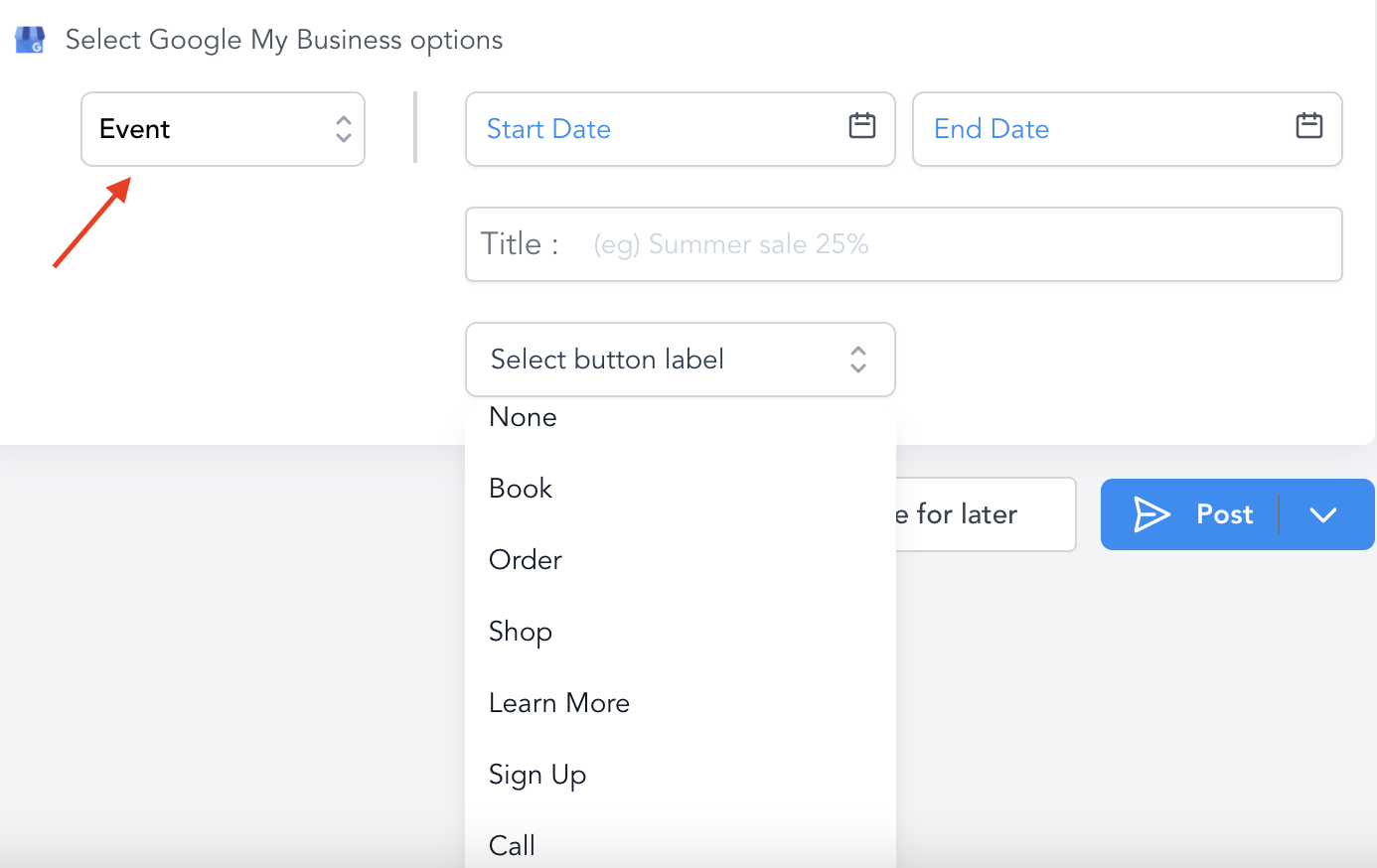
- If you are posting to Google My Business, you can choose from various options. Be sure to fill out all the appropriate information from the option you choose in the dropdown list.
- “Call To Action”
- “Event”
- “Offer”

Step 3: Preview Your Post
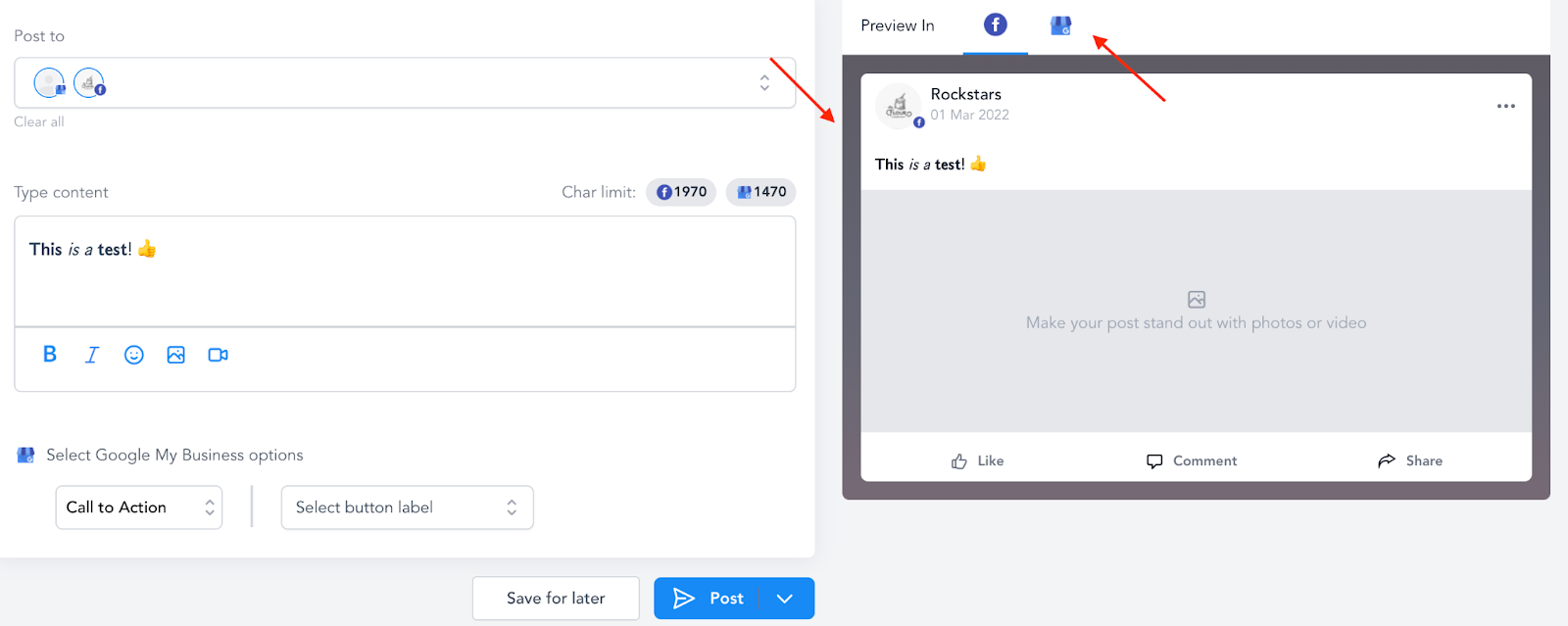
- Preview it on the right hand side of the screen.
- If you are posting to more than one social media platform (i.e. Facebook and Google My Business, you can toggle between previews at the top.)
Step 4: Schedule Or Send Your Post
- You can either “post now” to share the content right away, or “save for later” to schedule for a later time. You can also “Delete” the post if you changed your mind and wish to remove the content.

- If you choose to schedule the post, a popup calendar with the date and time will appear. Choose your date and time and click “Schedule Post” to confirm.

- You can manage scheduled posts from the Social Planner dashboard in the list found at the bottom of the page, or in the Planner calendar.
The Complete Operator's Playbook
Weekly strategies from top-performing agencies
Join 5,000+ operators who get weekly tutorials, templates, and strategies that are actually working right now.
Matt @ HLPT
Founder, HL Pro Tools
Matt and his team of 250+ are known for making it easy to win with GoHighLevel. They bundle tools, trainings and team time for a complete solution. You can use them for all your HighLevel needs from white label support to done-for-you fractional marketing services.
Related Articles
Setting Up Email Notifications for Expired Social Media Accounts in HighLevel’s Social Planner
HighLevel’s Social Planner is where you can host your social accounts such as GMB, LinkedIn, Facebook, and Instagram. Each social account ha
Matt @ HLPTOptimal Image and Video File Sizes and Dimensions for HighLevel’s Social Planner
When creating social media posts and marketing campaigns within HighLevel, it is important to understand the image and video formats and siz
Matt @ HLPTHow to Connect to Your Facebook Page for Use in HighLevel’s Social Planner
HighLevel’s Social Planner tool allows you to connect multiple social media accounts and manage them in one area. By connecting Facebook pag
Matt @ HLPT