HighLevel Bulk Actions – Import and Export Contacts
1 min read
Category: HighLevel Bulk Actions
Published: March 25, 2022
Using the HighLevel Bulk Actions features in your Contacts/Smart Lists section, you can perform multiple one-off actions to selected or all contacts. Here’s how to export contacts using the bulk action feature in HighLevel:
Step 1: Choose Your Contacts
- Navigate to your contacts in HighLevel.
- Check the box to select contact records.
- You can also check the box at the top to select all on that page, and you can click the hyperlink to select all contacts in HighLevel.


Step 2: Choose Your Action
- Choose the icon for “Export Contacts”
- This will export a list of selected contact records from the system into a .csv file that will save to your computer.

NOTE: If you wish to import contacts, you may use the bulk action icon here. Please refer to our “How to Import Contacts” tutorial for step-by-step guidance.
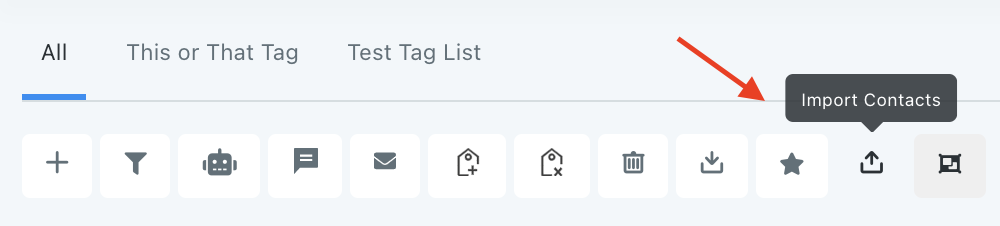
NOTE: If you cannot see the import and export options, please contact your account admin regarding your permissions.
NOTE: All contact records must have a phone number and/or email address in order to import.