HighLevel Social Planner 101: Everything You Need for 2026
13 min read
Category: Marketing
Published: April 24, 2026
Key Takeaways
- The HighLevel Social Planner lets you schedule, publish, and analyze content across 10+ platforms from a single dashboard — no more tab-hopping between Buffer, Hootsuite, and Canva.
- Content AI writes your captions, suggests hashtags, and even generates images directly inside the post composer.
- Social Listening (new in 2026) pulls real-time trends from Google, TikTok, Pinterest, YouTube, and Wikipedia so you can create content people actually want to see.
- Evergreen Queues and RSS automation keep your feed active 24/7, even when you are on vacation.
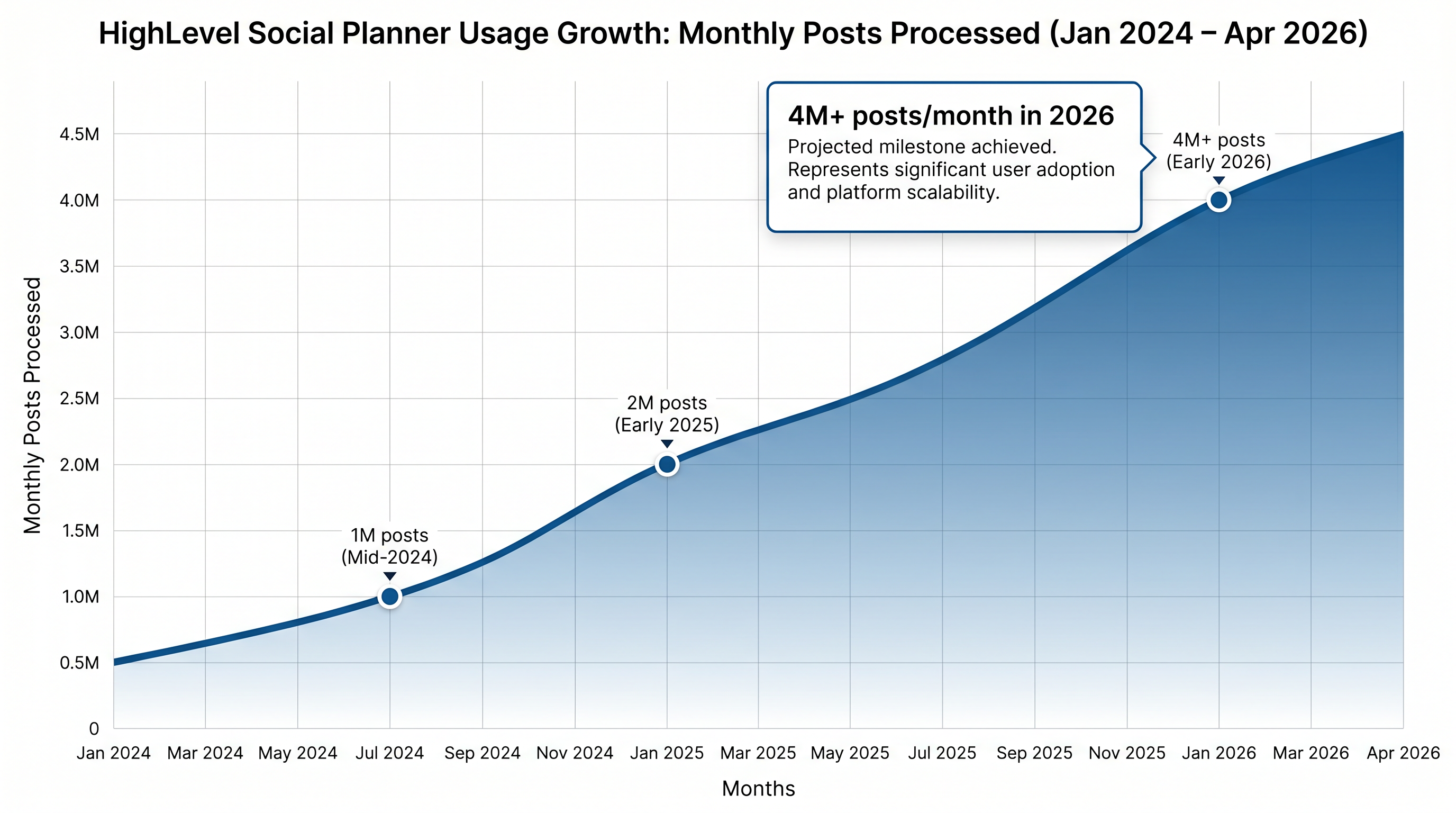
- HighLevel now processes over 4 million Social Planner posts per month, making it one of the fastest-growing social tools in the agency space.
If you have ever managed social media for a client — or even just for your own business — you already know the pain. You are juggling three different scheduling tools, a separate design app, a spreadsheet to track what posted where, and a prayer that you did not accidentally post the same carousel to LinkedIn and TikTok.
That is exactly the problem the HighLevel Social Planner was built to solve.
In this guide, I am going to walk you through everything the Social Planner can do in 2026 — from connecting your first account to using AI-generated visuals and trend data to build a content strategy that actually drives leads. Whether you are an agency owner managing 20 client accounts or a solo entrepreneur trying to stay consistent, this is the only tutorial you need.
1. What Is the HighLevel Social Planner?
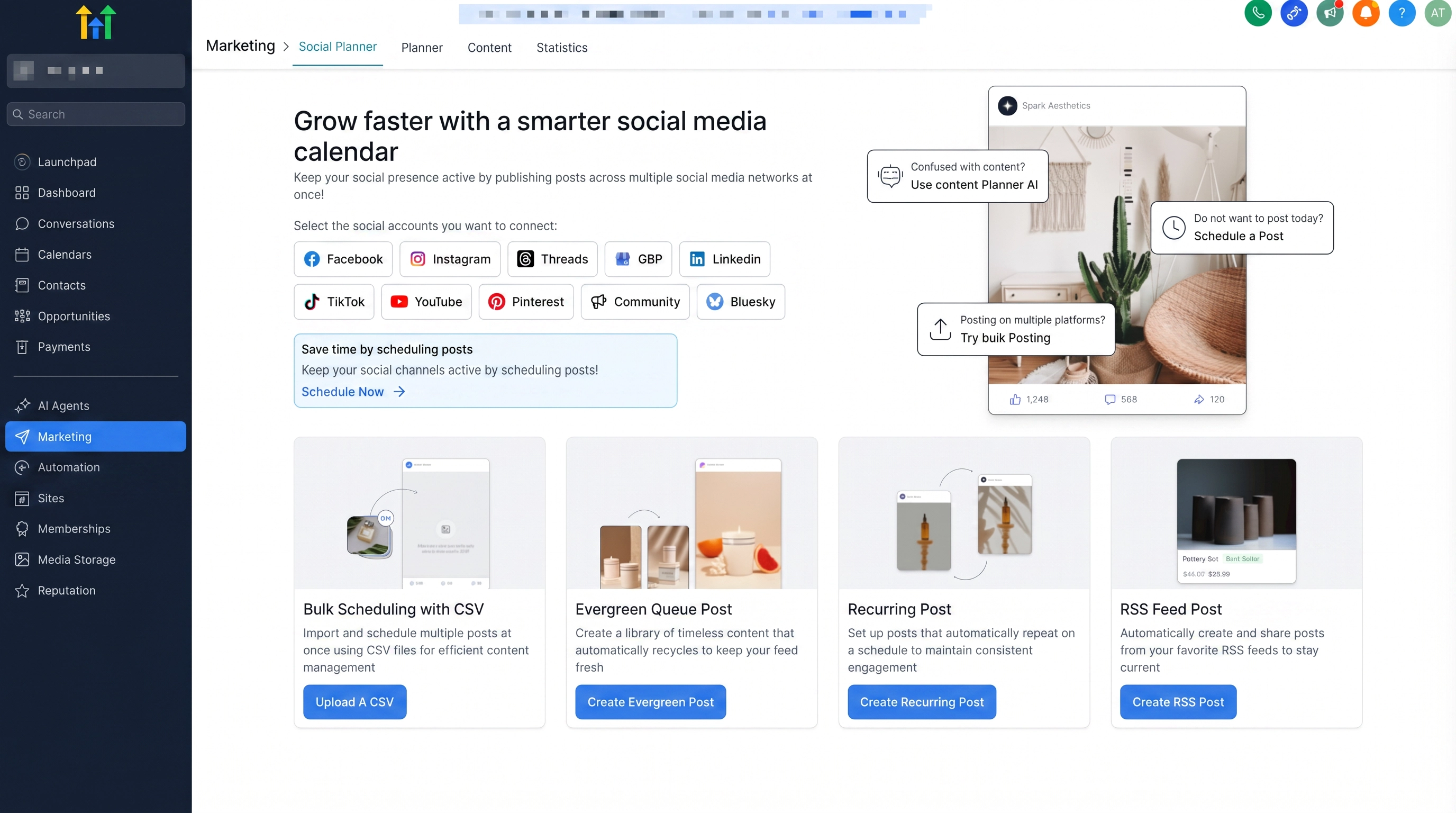
Think of the Social Planner as your social media command center. It lives inside your HighLevel CRM under Marketing → Social Planner, and it brings together everything you need to plan, create, schedule, and measure your social content — all without leaving the platform.
Here is what makes it different from standalone tools like Buffer or Later: the Social Planner is connected to your CRM. That means the leads you generate from social content flow directly into your pipelines, automations, and follow-up sequences. There is no CSV export, no Zapier middleware, no “did that lead actually sync?” anxiety.
Platforms you can connect in 2026:
| Platform | Post Types Supported | Custom Thumbnails |
|---|---|---|
| Facebook Pages | Posts, Stories, Reels | ✅ |
| Instagram Business | Posts, Stories, Reels, Carousels | ✅ |
| LinkedIn (Profiles & Pages) | Posts, Articles | ✅ |
| TikTok (Personal & Business) | Videos, Shorts | ✅ |
| YouTube | Videos, Shorts | ✅ |
| Google Business Profile | Updates, Photos, Events | — |
| Pins | — | |
| X (Twitter) | Tweets, Threads | — |
| Meta Threads | Text, Carousels | — |
| Bluesky | Posts | — |
That is 10 platforms from one screen. For agencies, this alone can replace two or three separate subscriptions.
2. How to Set Up the Social Planner (Step by Step)
Getting started takes about five minutes. Here is the exact process:
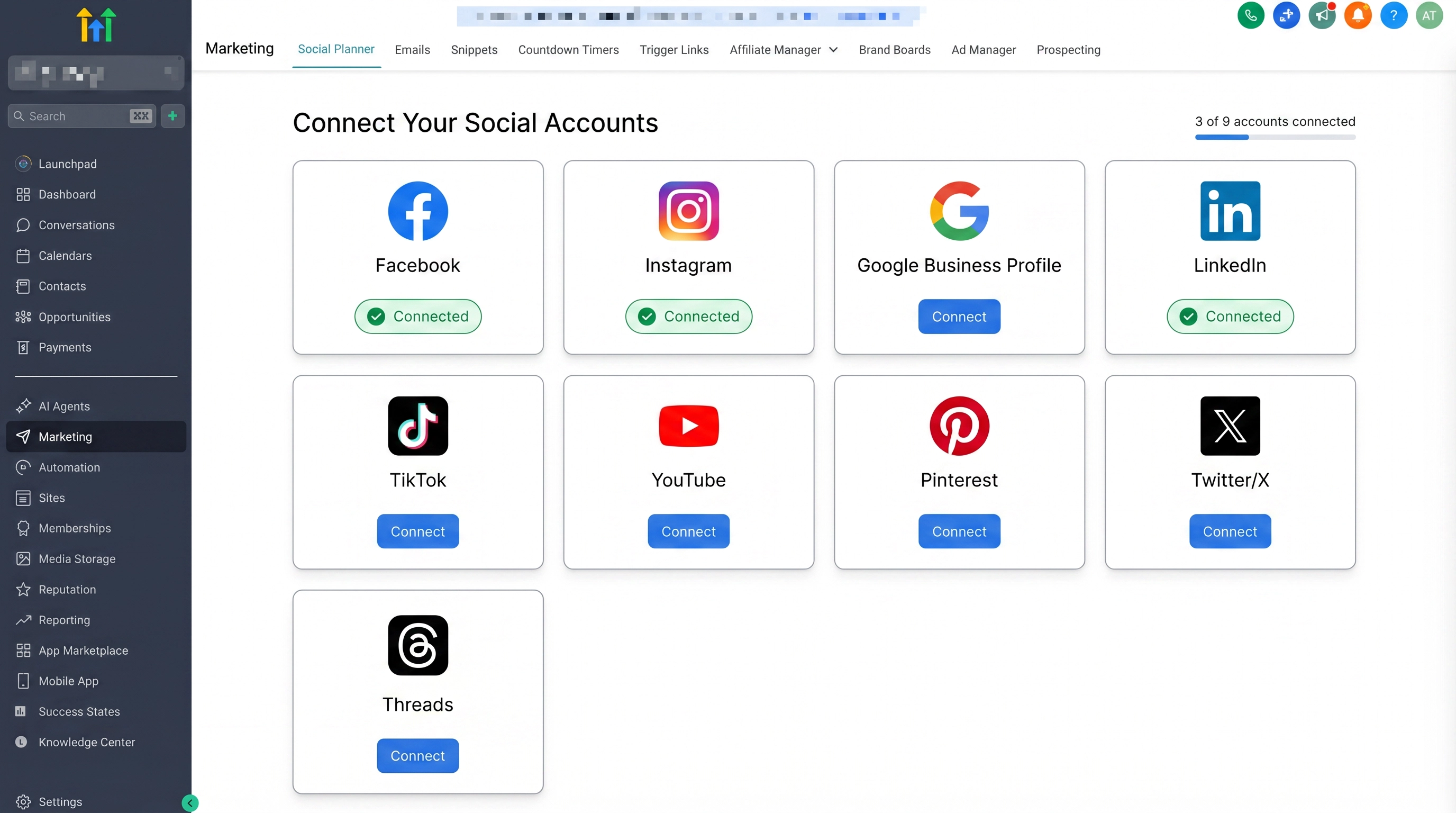
Step 1: Navigate to Marketing → Social Planner. You will see the main calendar view with options to create new posts, upload CSVs, and manage your connected accounts.
Step 2: Connect your social accounts. Click the gear icon (Settings), then select the platform you want to connect. For Facebook and Instagram, you will log into your Meta account and select the pages you want to manage. For LinkedIn, TikTok, and YouTube, the process is similar — just follow the OAuth prompts.
Step 3: Verify your connections. Once connected, you will see a green checkmark next to each account. You can connect as many accounts as your plan allows — most HighLevel plans offer unlimited social connections.
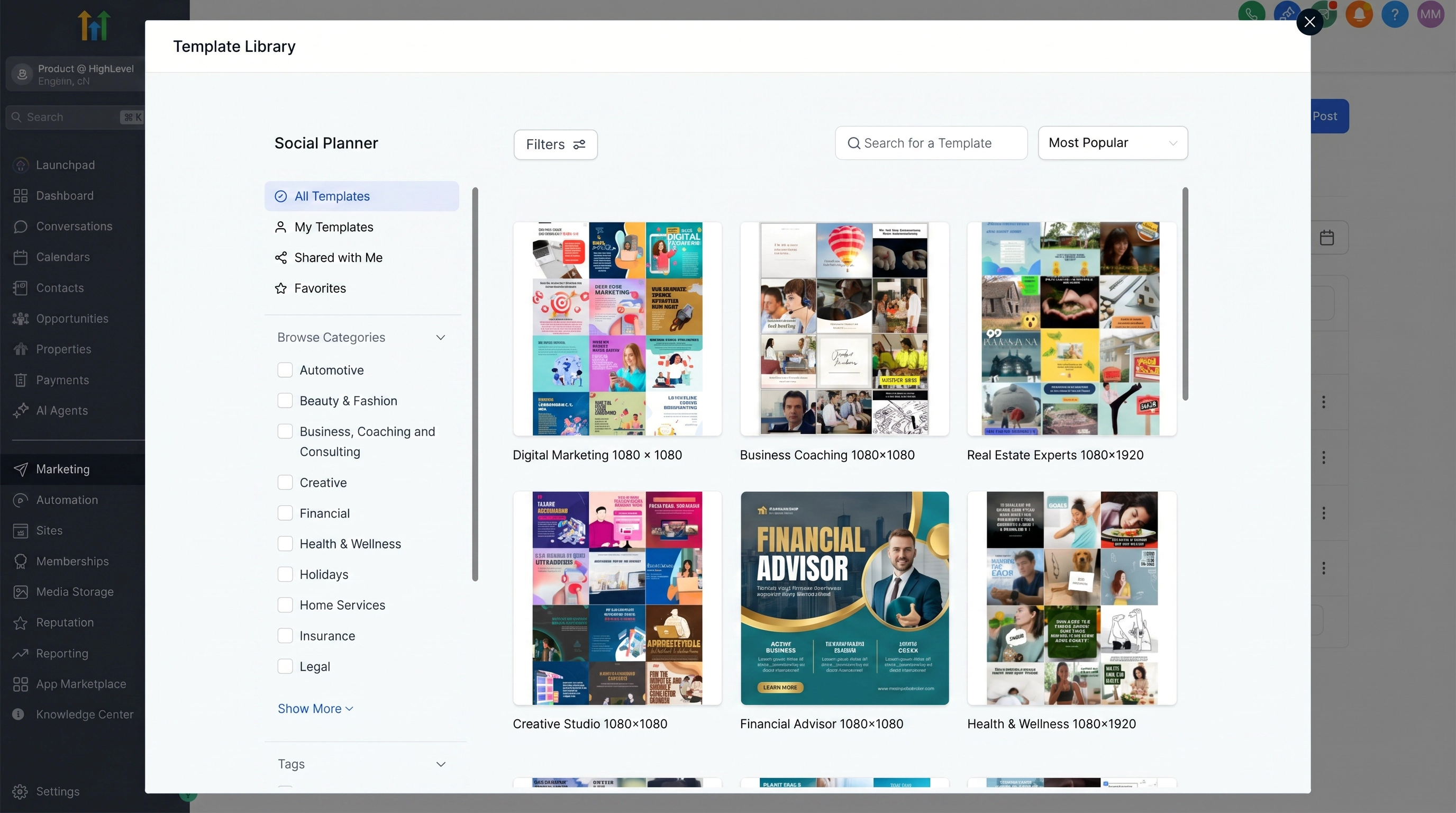
Pro tip: You can actually explore the Social Planner before connecting any accounts. This lets you preview the scheduling flow, bulk upload interface, and content templates so you know exactly what you are working with.
Want to see this in action?
Download our 2 highest-converting GHL templates and start building your social strategy today.
3. Content AI: Let HighLevel Write Your Posts
This is where the Social Planner starts to feel like a genuine unfair advantage. The Content AI feature, built directly into the post composer, does not just autocomplete a sentence — it creates full, platform-optimized posts based on guided questions about your business, audience, and goals.
Here is how it works in practice:
Guided Content Questions. When you click “Generate with AI,” the system asks you a series of targeted questions: What is the topic? Who is the audience? What tone do you want? What platform is this for? Based on your answers, it generates a complete post — caption, hashtags, and even a call-to-action.
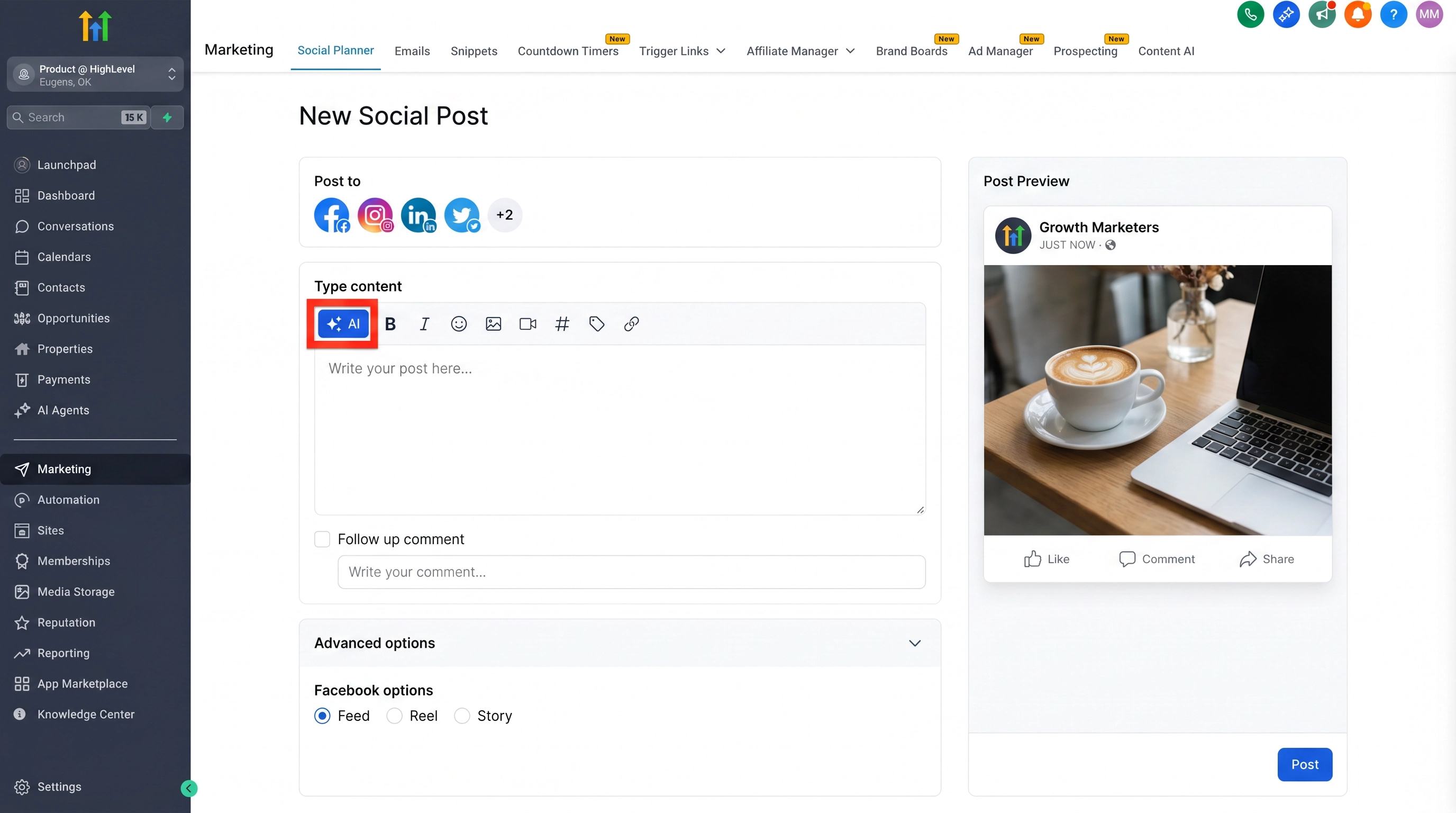
AI Image Generation. This is the feature that replaced Canva for a lot of agencies. Right inside the post composer, you can type a prompt like “Create a professional 3D render of a marketing dashboard” and the AI generates four image options. Pick one, edit it with the built-in image editor, apply your brand colors with one click, and attach it to your post. No more switching tabs.
Grammar and Tone Tools. Already have a draft? Content AI can fix grammar, adjust the tone (professional, casual, witty), make the text longer or shorter, and suggest improvements — all without leaving the composer.
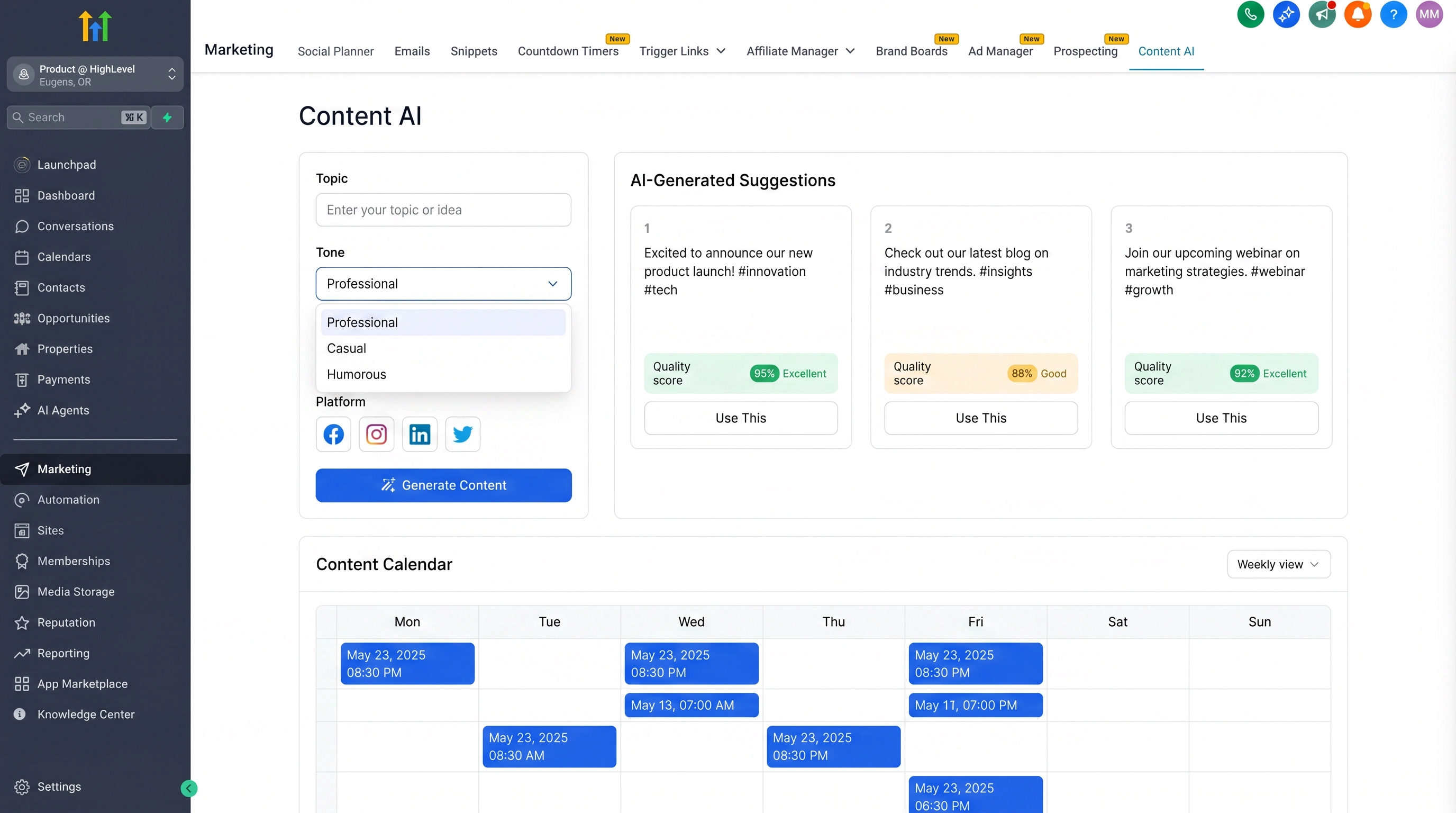
The result is that what used to take 30–45 minutes per post (write, design, review, schedule) now takes about 5 minutes. Multiply that across 20 client accounts and you are looking at hours saved every single week.
4. Social Listening: Know What to Post Before You Post It
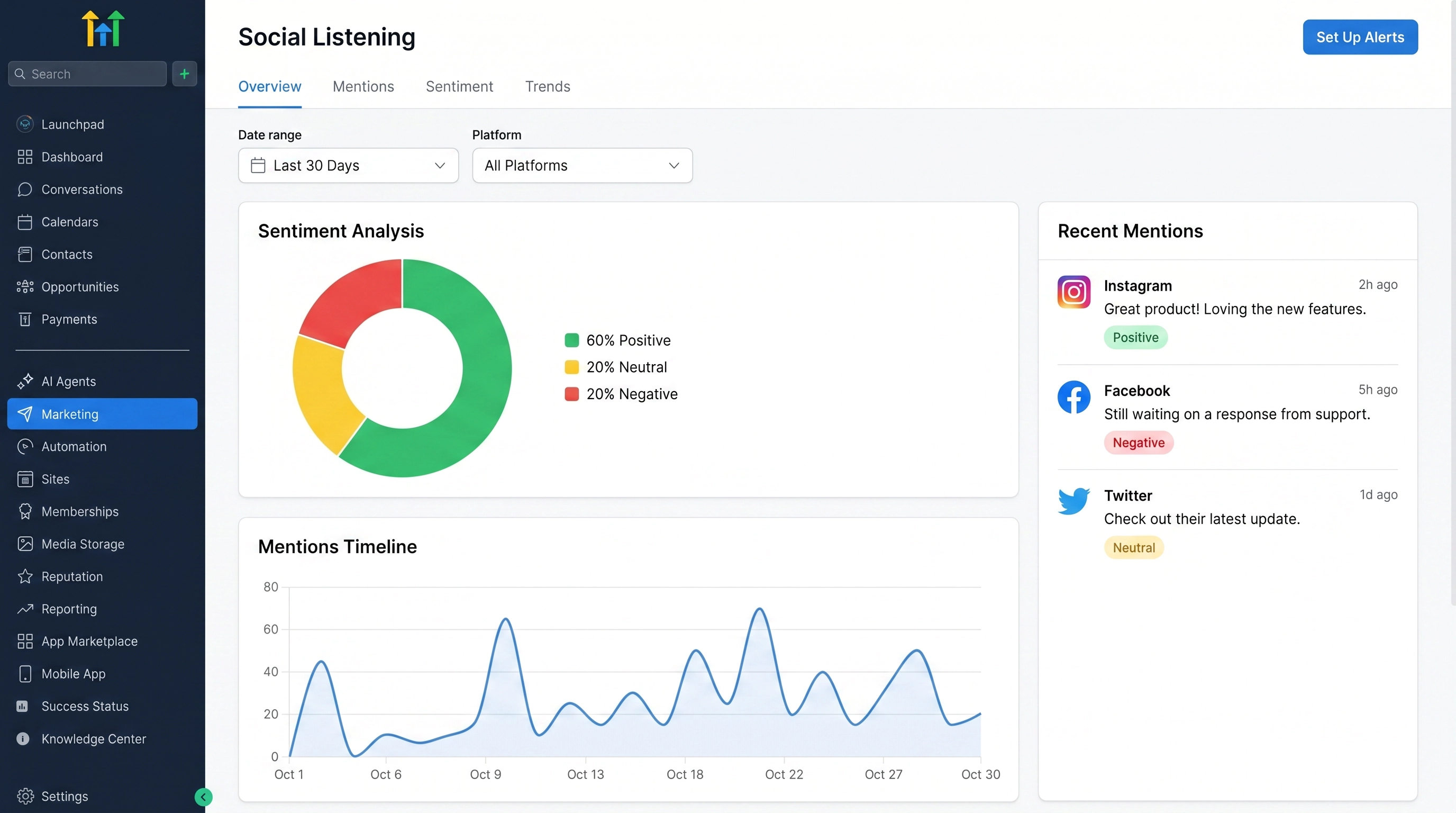
Social Listening is one of the biggest additions to the Social Planner in 2026, and it fundamentally changes how you approach content strategy. Instead of guessing what your audience wants to see, you can now see exactly what they are already searching for, watching, and talking about.
You will find it under the Listening tab inside Social Planner. It pulls real-time trend data from five sources:
| Data Source | What It Tells You | Best For |
|---|---|---|
| Google Trends | What people are searching for right now | Blog topics, SEO-driven posts |
| Pinterest Keywords | Rising content ideas and visual trends | Visual content, lifestyle brands |
| Wikipedia Pageviews | Topics gaining global attention | Newsjacking, cultural moments |
| TikTok Trends | Breakout songs, hashtags, viral sounds | Short-form video strategy |
| YouTube Insights | Trending channels, keywords, and videos | Long-form content, tutorials |
The best part? You do not need to connect any social accounts to use Social Listening. It pulls public trend data, so you can start using it the moment you open the tab.
My recommendation: Spend 10–15 minutes every Monday morning in the Listening tab. Look for trends that overlap with your niche, then batch-create 3–5 posts around those topics for the week. This single habit will make your content feel timely and relevant instead of generic.
5. Scheduling Options: One-Time, Recurring, Evergreen, and Bulk
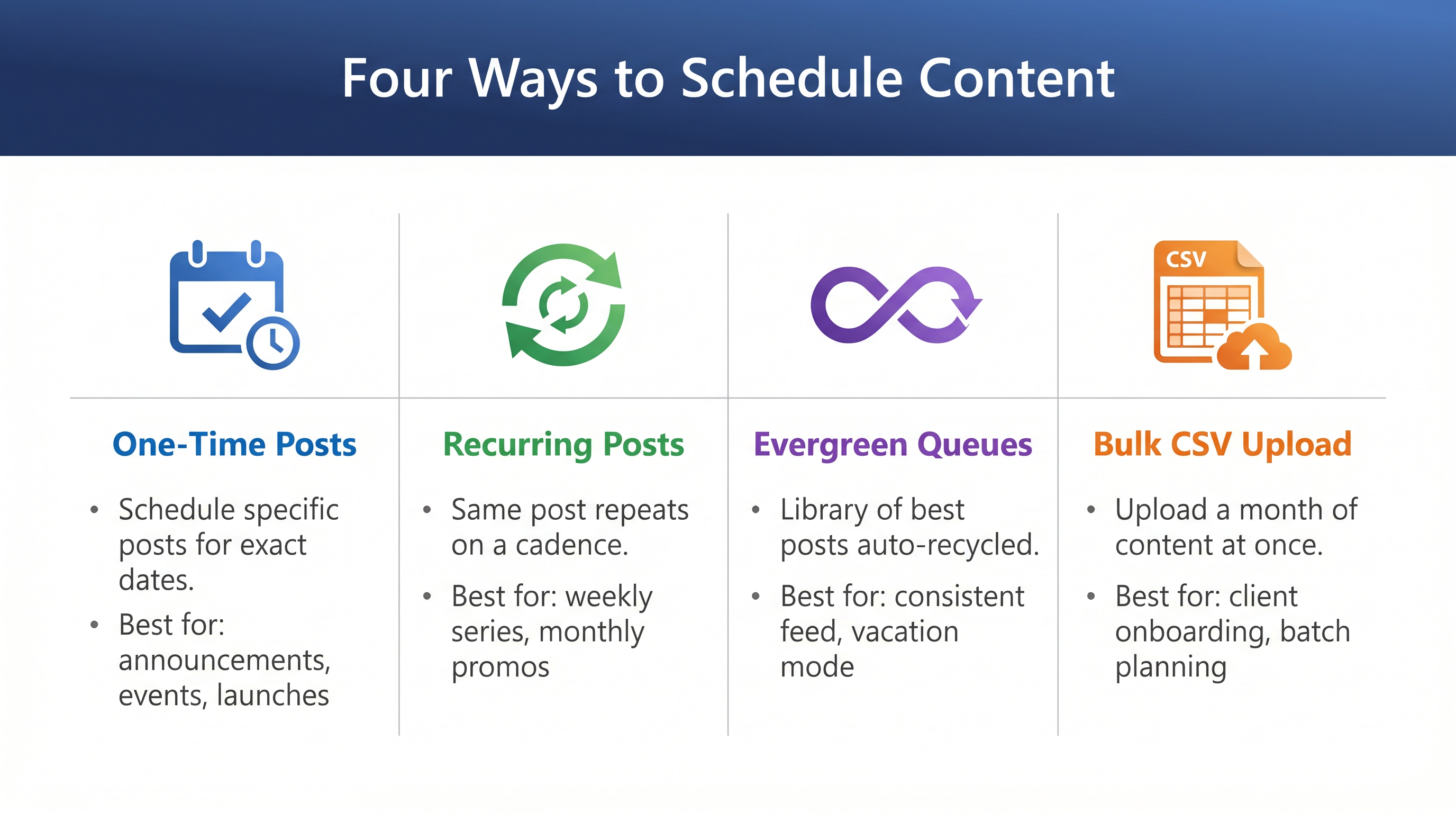
The Social Planner gives you four distinct ways to get content onto your calendar. Understanding when to use each one is the difference between a feed that feels alive and one that feels like it is on autopilot (in a bad way).
One-Time Posts. This is your standard “create a post, pick a date and time, hit schedule” flow. Use it for announcements, event promotions, or anything time-sensitive.
Recurring Posts. Set a post to repeat on a daily, weekly, or monthly cadence. This is perfect for “Tip Tuesday” series, weekly testimonials, or monthly promotions. You set it once and it keeps going until you stop it.
Evergreen Queues (Category Queues). This is the feature that separates agencies who scale from agencies who burn out. You create a library of your best-performing posts, tag them by category (tips, testimonials, promotions, behind-the-scenes), and the Social Planner automatically recycles them into your feed whenever there is a gap in your schedule. You can prioritize newer content so it appears first, keeping your feed fresh.
Bulk Scheduling via CSV. If you are planning a month of content at once — or onboarding a new client — the CSV upload feature is a massive time-saver. You prepare your posts in a spreadsheet (text, image URLs, target platforms, dates), upload the CSV, and the Social Planner validates and schedules everything in one shot.
6. RSS-to-Social: Automate Your Blog Distribution
If you are publishing blog content (and you should be), the RSS-to-Social feature is a no-brainer. Connect your blog’s RSS feed, and every time you publish a new article, the Social Planner automatically creates social posts that link back to your site.
Here is why this matters: most blog posts get published and then… nothing. The author shares it once on LinkedIn, maybe tweets about it, and then moves on. With RSS automation, every new article gets distributed across all your connected platforms automatically. You write once, and the Social Planner handles the distribution.
You can customize the post template so each platform gets an appropriate version. A LinkedIn post might include a professional summary, while an Instagram caption might pull the first paragraph and add relevant hashtags.
7. Post Approval Workflows
For agencies, this feature is non-negotiable. The Post Approval Flow lets you create content, send it to a client (or manager) for review, and only publish it once it has been approved.
Here is the workflow:
- Create your post as usual — write the caption, attach media, select platforms.
- Instead of clicking “Schedule,” click “Send for Approval.”
- The approver receives a notification and can review the post, leave comments, or approve it directly.
- Once approved, the post moves to the scheduled queue automatically.
This eliminates the back-and-forth email chains (“Can you change the hashtag?” “Actually, use a different photo”) and keeps everything in one place. For bulk content, you can even upload a CSV and send the entire batch for approval at once.
8. Best Time to Post: Let the Data Decide
Stop guessing when to post. The Best Time to Post feature analyzes your specific audience’s engagement patterns and tells you exactly when they are most active on each platform.
This is not a generic “post at 9 AM on Tuesdays” recommendation. It is based on your audience data — when your followers are online, when they engage most, and when your content gets the most reach. The AI updates these recommendations as your audience grows and their behavior shifts.
When you are scheduling a post, you will see a suggested time slot highlighted in the calendar. You can accept it with one click or override it if you have a specific reason to post at a different time.
9. Advanced Features Worth Knowing
Beyond the core scheduling and AI tools, there are several features that can level up your social strategy:
@Mentions and Tagging. You can tag other profiles directly from the Social Planner for Facebook, Instagram, and LinkedIn posts. This is huge for collaboration posts, client shoutouts, and building relationships with other brands.
Location Tagging. Add geographic tags to your posts to increase local discoverability. Essential for local businesses and multi-location brands.
Link Shortener. The built-in link shortener creates clean, trackable URLs for every link you share. You can see exactly how many clicks each post drives.
Multiple Watermarks. Add your brand watermark to images and videos before posting. You can set up multiple watermark presets for different clients or brands.
Custom Video Thumbnails. Upload custom thumbnails for video content on Facebook, Instagram, LinkedIn, and YouTube. This gives you control over the first impression your video makes in the feed.
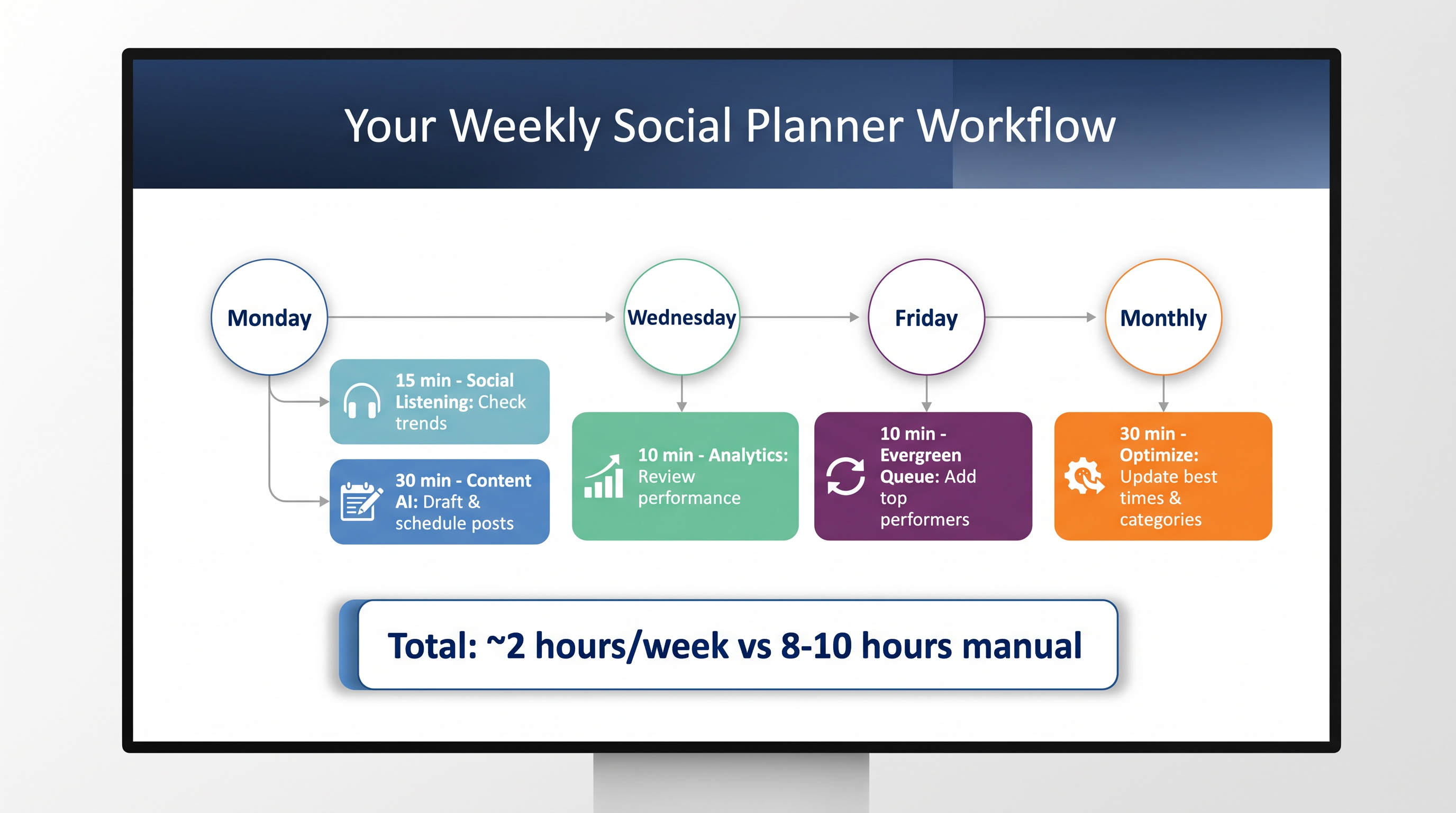
10. Putting It All Together: A Weekly Social Workflow
Here is the workflow I recommend for getting the most out of the Social Planner:
Monday (15 minutes): Open Social Listening. Check Google Trends and TikTok Trends for anything relevant to your niche. Note 3–5 topic ideas.
Monday (30 minutes): Use Content AI to draft posts for each topic. Let the AI generate images. Review, edit, and schedule for the week.
Wednesday (10 minutes): Check your analytics. Which posts from earlier in the week are performing? Double down on that topic with a follow-up post.
Friday (10 minutes): Review your Evergreen Queue. Add any high-performing posts from this week to the queue so they get recycled in future weeks.
Monthly (30 minutes): Review your Best Time to Post data. Adjust your scheduling windows if your audience behavior has shifted. Update your Evergreen categories.
That is roughly 2 hours per week for a complete, data-driven social media strategy. Compare that to the 8–10 hours most people spend manually managing social media, and you can see why agencies are moving everything into HighLevel.
Frequently Asked Questions
How many social accounts can I connect?
Most HighLevel plans offer unlimited social connections, making it ideal for agencies managing multiple client accounts. Check your specific plan details for exact limits.
Do I need to connect social accounts to use Social Listening?
No. Social Listening pulls public trend data from Google, Pinterest, Wikipedia, TikTok, and YouTube. You can start using it immediately without connecting any accounts.
Can Content AI generate images, or just text?
Both. Content AI can write full captions with hashtags and also generate images directly inside the post composer. You type a prompt, it creates four options, and you pick the one you like.
What is the difference between Evergreen Queues and Recurring Posts?
Recurring Posts repeat the same post on a set schedule (daily, weekly, monthly). Evergreen Queues rotate through a library of posts, automatically filling gaps in your calendar with your best content. Use Recurring for consistent series; use Evergreen for variety.
Can I bulk schedule posts for multiple clients?
Yes. The CSV bulk upload feature lets you prepare content for multiple accounts in a spreadsheet and upload everything at once. You can also send bulk uploads through the approval workflow before they go live.
Does the Social Planner support Instagram Carousels?
Yes. You can create and schedule Instagram carousel posts directly from the Social Planner, including custom thumbnails for each slide.
How does the Best Time to Post feature work?
It analyzes your specific audience’s engagement patterns — not generic industry data — and recommends optimal posting times for each platform. The recommendations update as your audience grows.
Conclusion
The HighLevel Social Planner is not just a scheduling tool — it is a complete social media operating system built for agencies and entrepreneurs who need to move fast without sacrificing quality. Between Content AI, Social Listening, Evergreen Queues, and the approval workflows, you have everything you need to run a professional social media operation from a single dashboard.
The agencies that win in 2026 are the ones that stop treating social media as an afterthought and start treating it as a lead generation channel that feeds directly into their CRM. The Social Planner makes that possible.
If you are already on HighLevel, go to Marketing → Social Planner and start exploring. If you are not on HighLevel yet, this is one of the many reasons to consider making the switch.