How to Add Messaging to Your Google My Business Listing and Set Up Communication Notifications In HighLevel


Key Takeaways
- Google My Business (GMB) is a powerful tool for reaching customers.
- It can be integrated with HighLevel, to increase your ability to conveniently communicate with your leads or customers.
- When someone Googles a category of business, most businesses that pop up have the buttons to call, save, get directions, or access the website.
- You can make your business stand out more, and reach additional leads, by adding the chat/message option.
Google My Business (GMB) is a powerful tool for reaching customers. It can be integrated with HighLevel, to increase your ability to conveniently communicate with your leads or customers. When someone Googles a category of business, most businesses that pop up have the buttons to call, save, get directions, or access the website. You can make your business stand out more, and reach additional leads, by adding the chat/message option.

This will allow you to conveniently reach leads through SMS communications, completely integrated with HighLevel. Follow these steps to learn how:
Part 1: Setting Up a Google My Business Account
Step 1: Set Up or Log In to your GMB Account

- Search Google My Business in your browser.
- Sign Up if you don’t have an account. Sign In if you already do.

- After signing in, click Messaging.
- Fill out the necessary information under the Messaging Tab.

- Turn On Messaging.
- To start receiving messages click Okay.
- NOTE: You can also Edit your Welcome message if you want.
Tired of Being the Admin, the Marketer, and the Closer?
You didn't start your business to spend hours building funnels, managing calendars, and chasing follow-ups inside HighLevel. What if someone else handled all of that for you?
Our HighLevel-trained virtual assistants know the platform inside and out — workflows, pipelines, social scheduling, reporting — so you can focus on closing deals and growing your business. Starting at only $164 per week.
Step 2: Integrate your Google My Business page.
- Navigate to Settings > Integrations.
- Choose the “Google My Business” integration.
- Click “Select a GMB page” to connect a page.

- Once the page is integrated, you’ll have the option to “Change Page” or access “Messenger Settings” to make changes. You can also remove a page.
- Under the “Messenger Settings” you can choose a display name, add a logo, set the welcome message, Choose a contact name, email, and brand website. You may also insert a Privacy Policy URL if you wish.
Step 3: Accessing your GMB Communications
- Navigate to Conversations.
- Click into a conversation and you’ll be able to see the GMB communication with a contact. It will appear as SMS communication. You’ll be able to reply directly within the conversation channel.
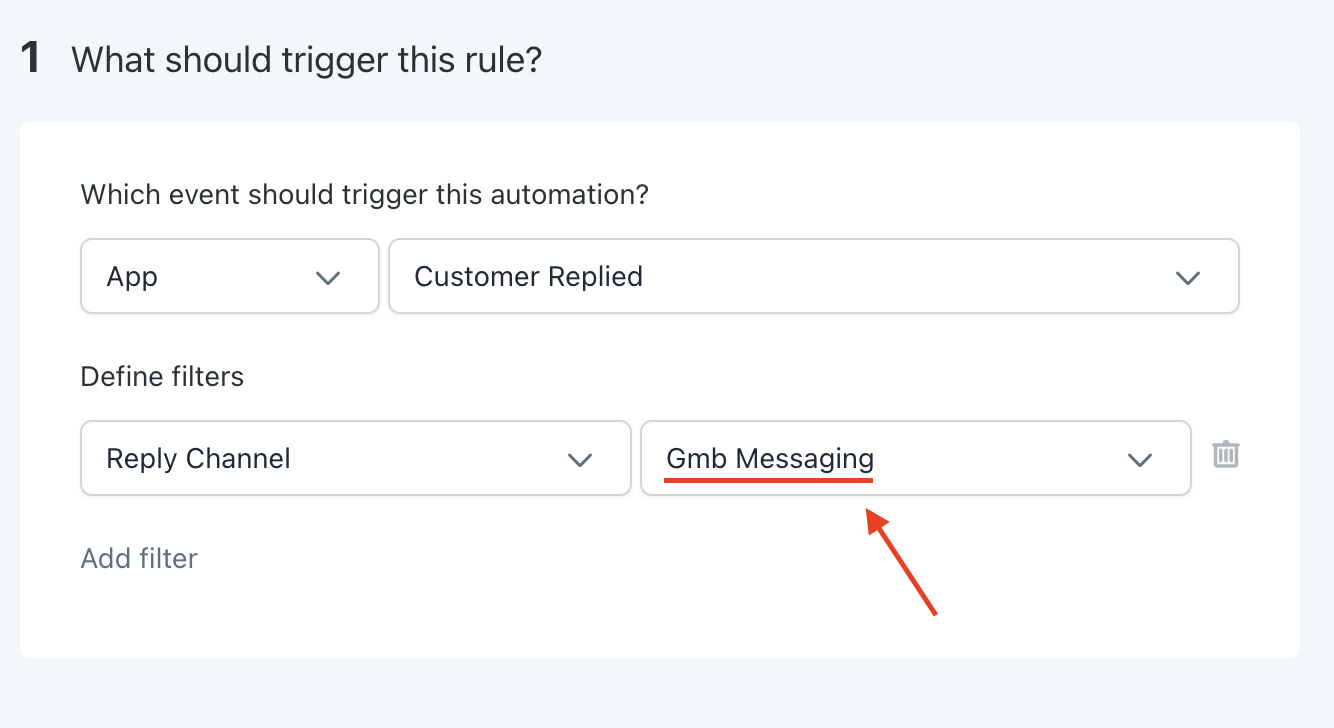
- NOTE: you may now also filter the “Customer Replied” channel in a trigger by GMB Messaging. See Part 2 below for details.
Part 2: Setting Up Communication Notifications
Once you’ve integrated HighLevel with Google My Business (GMB), you may want to set up notifications when someone messages you through the platform. Follow these simple steps to create a trigger to be notified when you get a new GMB message.
Step 1: Setting up the Trigger
- Navigate to Triggers to create a new trigger.
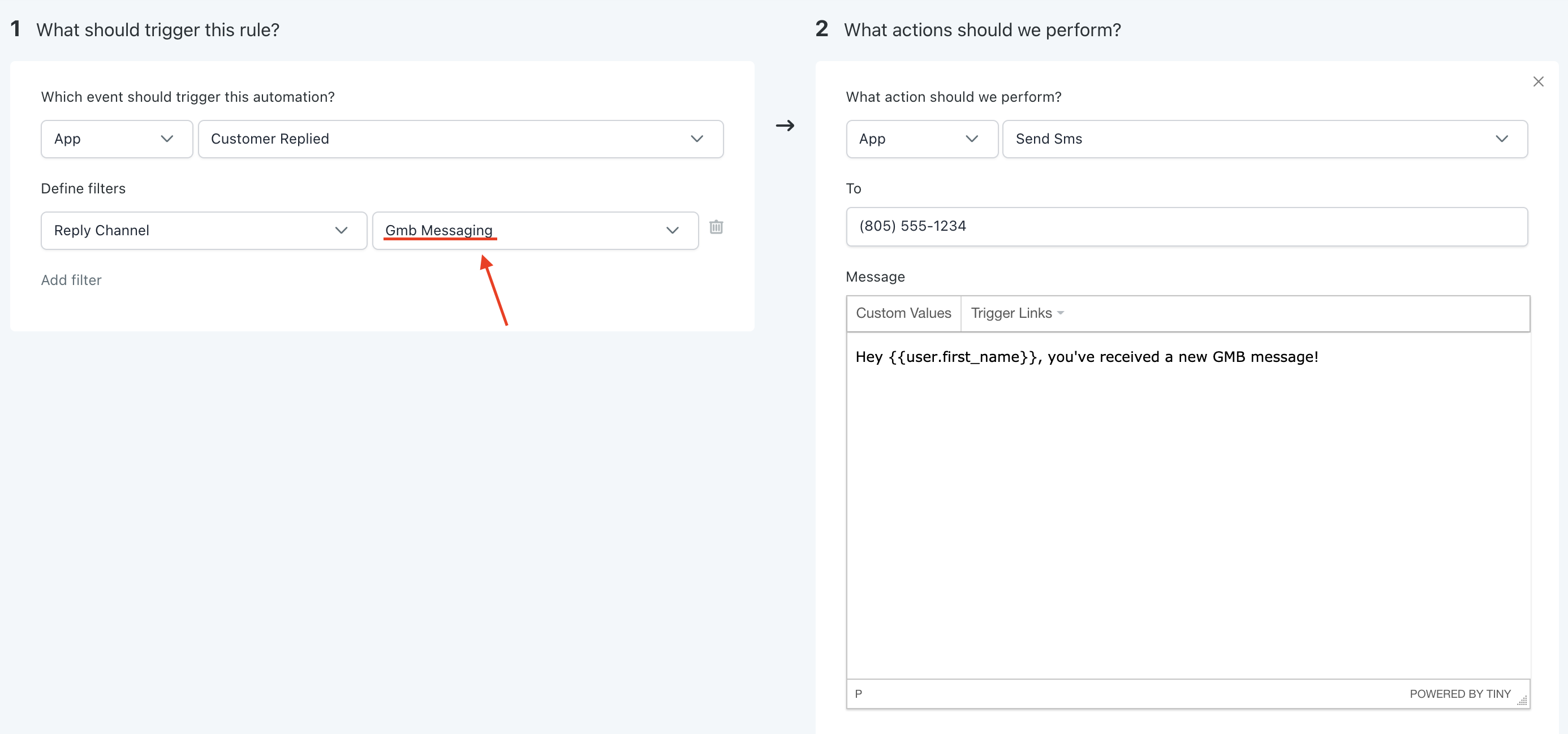
- Under Part 1, set up “Customer Replied” as the event to trigger the automation.
- Then define the filter as “Reply Channel” > “GMB Messaging”.
- In Part 2, set up whatever type of notification you want, such as an email or SMS to yourself or a user on your team, to be notified that a new GMB message has come in. In the example below, we set up a text to a specific number.
- Don’t forget to save and activate your trigger.
Step 2: Viewing your GMB Messages
- To view the messages, go to your Conversations tab.
- You can reply directly from this area.
The Complete Operator's Playbook
Weekly strategies from top-performing agencies
Join 5,000+ operators who get weekly tutorials, templates, and strategies that are actually working right now.
Matt @ HLPT
Founder, HL Pro Tools
Matt and his team of 250+ are known for making it easy to win with GoHighLevel. They bundle tools, trainings and team time for a complete solution. You can use them for all your HighLevel needs from white label support to done-for-you fractional marketing services.