How To Differentiate Between Basic and Custom for RSS Headers and Items in HighLevel’s Email Builder


Key Takeaways
- Within HighLevel’s Email Builder, you may be using the RSS Header or RSS Item elements to automatically update information across sites.
- They are useful for blogs and other sites if you want to pull information from a site into an email.
Within HighLevel’s Email Builder, you may be using the RSS Header or RSS Item elements to automatically update information across sites. They are useful for blogs and other sites if you want to pull information from a site into an email.
Follow these steps to edit the Headers and items using both “Basic” and “Custom” options within HighLevel.
Step 1: Editing The RSS Header Block
The RSS Header Block dynamically populates <channel> tags from your feed. The header element supports these RSS channel tags:
| RSS Tags | Custom Value |
| <title> | {{rss_feed.title}} |
| <description> | {{rss_feed.description}} |
| <link> | {{rss_feed.url}} |
| <lastBuildDate> | {{rss_feed.date}} |
Be sure to use the corresponding custom value for each, in order to populate the email with the correct tag value.
In the Header block’s editing options, you will see “Basic” and “Custom” options.

- “Basic” will add non-editable text in the editor:
Tired of Being the Admin, the Marketer, and the Closer?
You didn't start your business to spend hours building funnels, managing calendars, and chasing follow-ups inside HighLevel. What if someone else handled all of that for you?
Our HighLevel-trained virtual assistants know the platform inside and out — workflows, pipelines, social scheduling, reporting — so you can focus on closing deals and growing your business. Starting at only $164 per week.
<h1 class=”h1″>{{rss_feed.title}}</h1> {{rss_feed.description}}<br /> <br />
- “Custom” will add this editable text in the editor:
Updates from {{rss_feed.url}} <h1>{{rss_feed.title}}</h1> <strong>{{rss_feed.description}}</strong><br /> <br /> <strong>In the {{rss_feed.date}} edition:</strong><br />
NOTE: The custom RSS <channel> variables can also be used in the subject field.
Step 2: Editing The RSS Items Block
The Items block will accept these custom values, dynamically inserting the respective RSS Tags:
| RSS Tags | Custom Values | Description |
| <title/> | {{rss_item.title}} | The title of the RSS item, most commonly a blog post. title |
| <description/> | {{rss_item.content}} | A summary of the RSS item in HTML format |
| <link/> | {{rss_item.url}} | The text link to the RSS item online, which can be displayed as text or used in a hyperlink.content:encoded |
| <content:encoded/> | {{rss_item.content_full} | The full content of the information inside the <content:encoded> tag for an RSS item, in HTML format. If no <content:encoded> tag, it will display the information in the <description> tag. |
| pubDate | {{rss_item.date}} | The date the RSS item was published, formatted as `MMM DD, YYYY hh:mm A`. |
| <dc:creator> | {{rss_item.author}} | The author of the RSS itemmedia:content |
| <media:content> | {{rss_item.imageUrl }} | The src URL of image as text in order to render it as image, use {{rss_img}}{{rss_img alt=”alt_text” src=rss_item.imageUrl height=”200″ width=”200″}} |
| <item> | {{#rss_items rss_items}} | It’s used to open the customized formatting for individual RSS items (doesn’t display anything). |
| </item> | {{/rss_items}} | It’s used to close the customized formatting for individual RSS items (doesn’t display anything.) |
In the Items block’s editing options, you will see “Basic” and “Custom” options, like the Header block’s options above, along with some additional options.
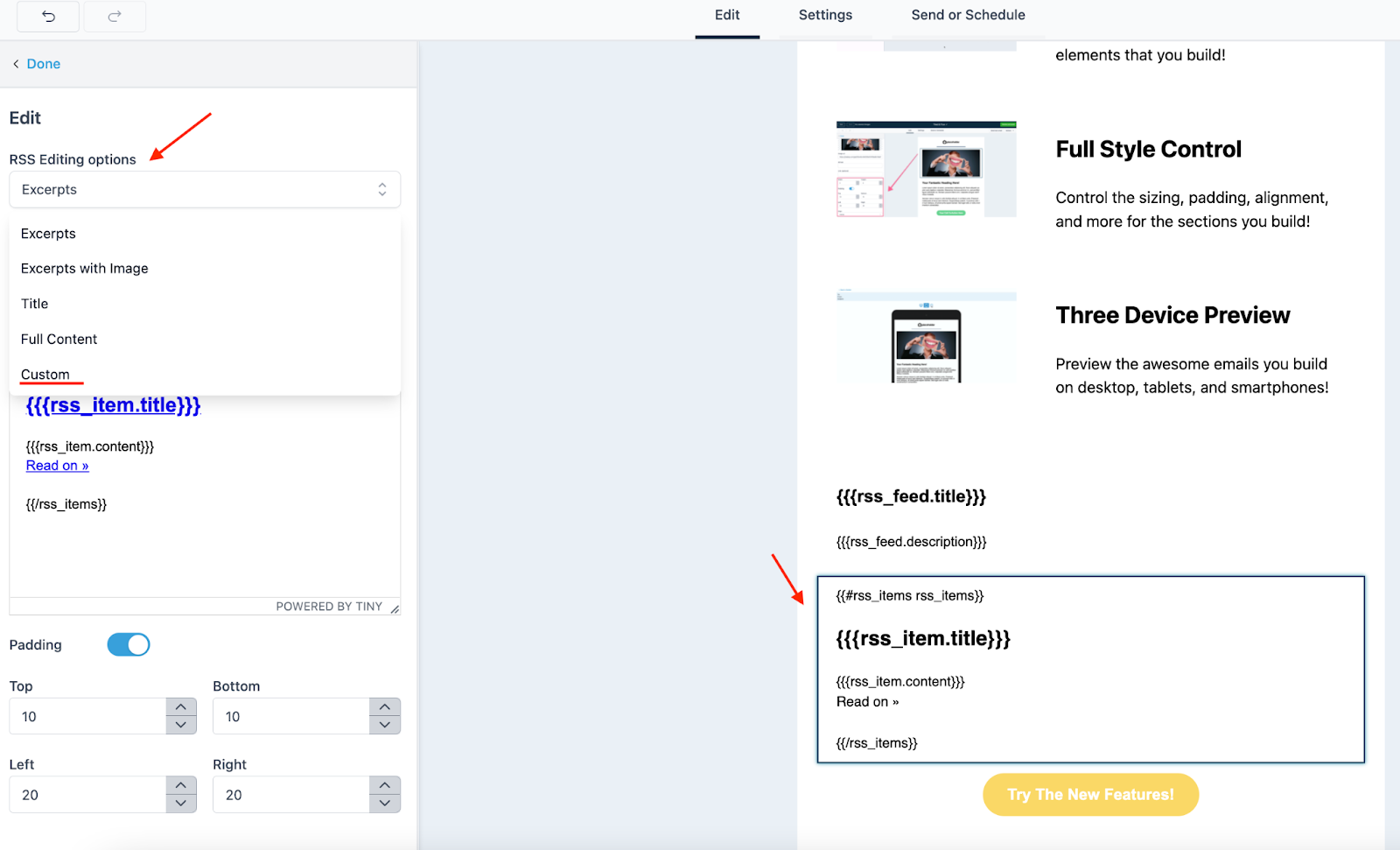
- “Basic” will add non-editable text in the editor:
{{#rss_items rss_items}} <h2 class=”mc-toc-title”><a href=”{{rss_item.url}}” target=”_blank”> {{rss_item.title}} </a> </h2> {{rss_item.content}} <br /> <a href=”{{rss_item.url}}” target=”_blank”>Read on »</a><br /> <br /> {{/rss_items}}
- “Custom” will add this editable text in the editor:
{{#rss_items rss_items}}<h2 class=”mc-toc-title”><a href=”{{rss_item.url}}”target=”_blank”>{{rss_item.title}}</a></h2> <em>By {{rss_item.author}} on {{rss_item.date}}</em><br /> {{rss_item.content_full}}<br /> <a href=”{{rss_item.url}}” target=”_blank”>Read in browser »</a><br /> <br /> {{/rss_items}}<br /> <br /> <br /> <h3 class=”h3″>Recent Articles:</h3> {{#rss_items rss_items}}
The Complete Operator's Playbook
Weekly strategies from top-performing agencies
Join 5,000+ operators who get weekly tutorials, templates, and strategies that are actually working right now.
Matt @ HLPT
Founder, HL Pro Tools
Matt and his team of 250+ are known for making it easy to win with GoHighLevel. They bundle tools, trainings and team time for a complete solution. You can use them for all your HighLevel needs from white label support to done-for-you fractional marketing services.
Related Articles
HighLevel Email Campaigns 101: The Complete Guide to Creating and Sending Email Campaigns
Learn how to create and send email campaigns in HighLevel. This complete guide covers campaign setup, email builder, templates, audience tar
Matt @ HLPTHow to Connect SendGrid as your SMTP Service in HighLevel
If you are using SendGrid for emails, you can connect your account to HighLevel to integrate it and send emails directly through HighLevel.
Matt @ HLPTWhat To Do If Your RSS Email Body Is Showing HTML Tags in HighLevel
Within HighLevel’s Email Builder, you may be using the RSS Header or RSS Item elements. These are files that are read easily by a computer (
Matt @ HLPT