How to Slow Drip Existing HighLevel Leads into Campaigns
3 min read
Category: HighLevel Automations
Published: August 9, 2020
Here’s the scenario: you crushed it on the Facebook campaign and got $0.62 leads into your HighLevel account. Only about 30% scheduled an appointment so you want to have a ringless voicemail (RVM) or phone call to go out to the other 70%. You know how to send a bulk request or send a campaign to all of your leads (or leads with a specific tag) at once but that would create a different headache. Your client would freak if they got 40 people calling them back at the same time so you need a way to add leads to a campaign in a delay – maybe a few every 5 minutes or something like that. The most flexible and automated way to do this is with a Zap to drip your leads into a HighLevel campaign. This is especially helpful for campaigns that involve calls, voicemail drops or a need to respond to texts in a manual manner. This can also be done for new that don’t pre-exist in HighLevel.
What you will need
- Zapier Account
- High Level Account
- Google Account
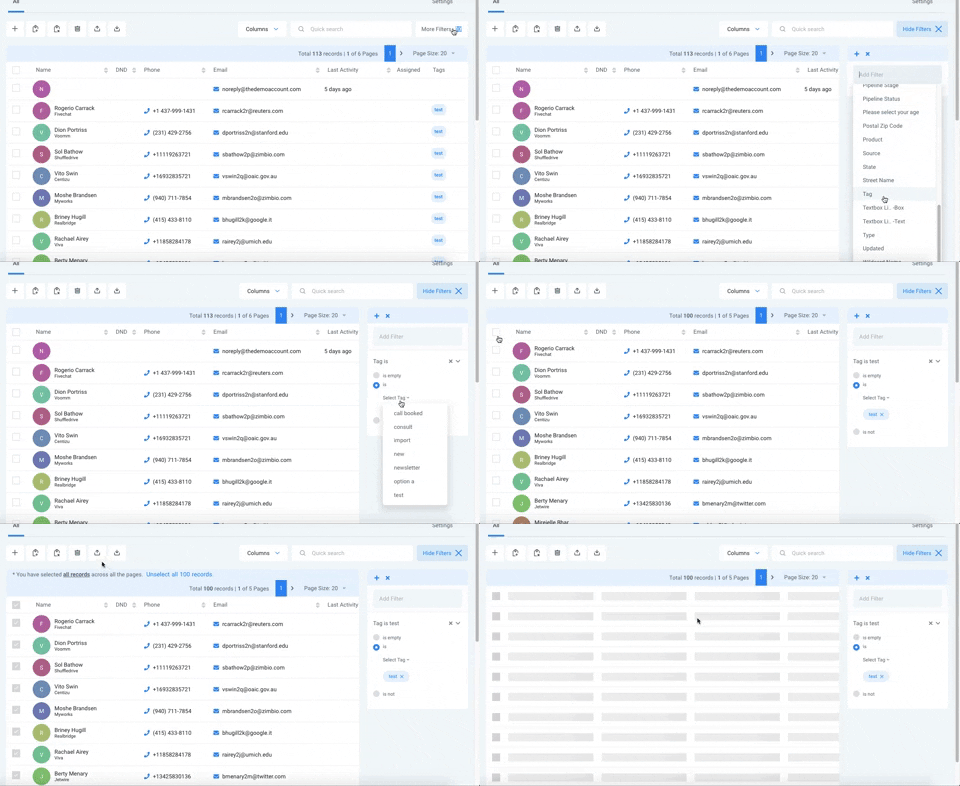
Move Contact Data into Google Sheets
The entire automation will fire off of new rows being added to a Google Sheet. Before we create that Zap automation, let’s create the Google Sheet and get our lead data into the right spot
- Export your client list into .csv using Smart Lists (see above GIF)
- Create a Google Sheet with two tabs
- Name the 1st Tab Existing Leads
- Name the 2nd Tab – Drip Campaign
- Copy and paste list from Excel into Existing Leads Tab
- In Drip Campaign Tab, add First Name, Last Name, Email and Drip Column Headers
- Sample Google Doc: https://docs.google.com/spreadsheets/d/1tG02H5j6fdLm5_itdMTQ800PRR55dG12GRrYBQRKg4o/copy
Create Zap to HighLevel
- You will be copying and pasting lead information and drip times into the Drip Campaign Tab to fire this Zap.
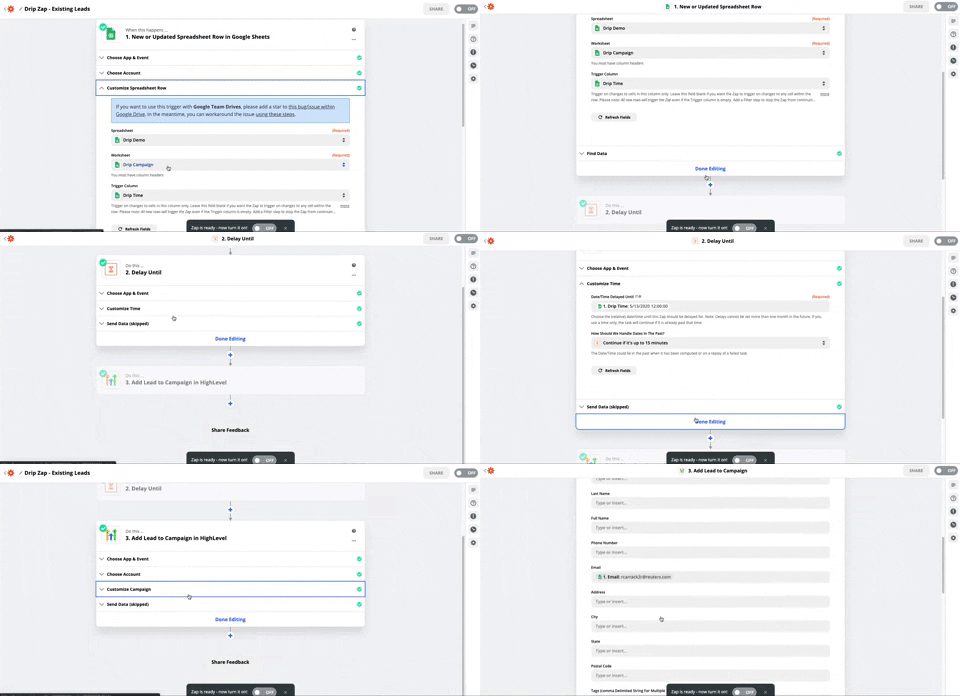
- First Step – New or Updated Row in Google Sheets
- Select your Google Sheet
- Select Drip Campaign Tab
- Select Drip Time Column
- First Step – New or Updated Row in Google Sheets
- Second Step – Create ‘Delay Until’ based on the time in the ‘Drip Time’ column
- Third Step – Add Lead to Campaign in HighLevel
- Select appropriate campaign
- Include email address to ensure contact does not become a duplicate contact (see step 3 in above GIF)
Grab Zap Here: https://zapier.com/shared/0323399b98a36a7baee7b6f047d32fe86dee2882

Drip HighLevel Leads In
- In the existing leads tab, ensure that your columns are in order (First Name, Last Name, Email, Drip Time)
- In the same tab, add the appropriate time and date that you want the lead to enter the campaign (format: DD/MM/YYY 00:00:00) to Drip Time column
- Copy and paste leads into Drip Campaign tab to fire the Zap you created
- It is recommended that you paste 5-8 at a time to ensure Zapier does not miss any new rows
Sit Back and Relax
Your leads will automatically be dripped into the campaign at the desired times.