How To Use Webhooks in HighLevel Triggers To Integrate With Other Applications
2 min read
Category: HighLevel Webhooks
Published: May 16, 2022
Using a webhook with Zapier, you can export data out of HighLevel to use with other platforms/systems. This can be helpful if you use multiple systems and want to export information into a spreadsheet for a variety of purposes for your business. Follow these steps to set up a Webhook.
Step 1: Create or Log In to your Zapier account.
- Ensure you have a Zapier account created. Visit zapier.com to log in or create an account.
Step 2: Create a trigger to execute a webhook.
There are several options to do this. You can create a trigger to fire off based on a form or survey being submitted, an appointment being booked, a trigger link being clicked, a two-step order form being completed, and more. In our example, we’ll use an appointment booking to export information into Google Sheets.
- Create a trigger for your webhook.
- Here, we’re creating a trigger based on a specific calendar so that when appointments are booked in that calendar, the webhook will export information to Google Sheets.

- We’ll need to retrieve the Webhook URL from Zapier to paste into Part 2” of the trigger. Keep this window open for now so you can come back and paste the Webhook URL.
Step 3: Set up the Webook in Zapier.
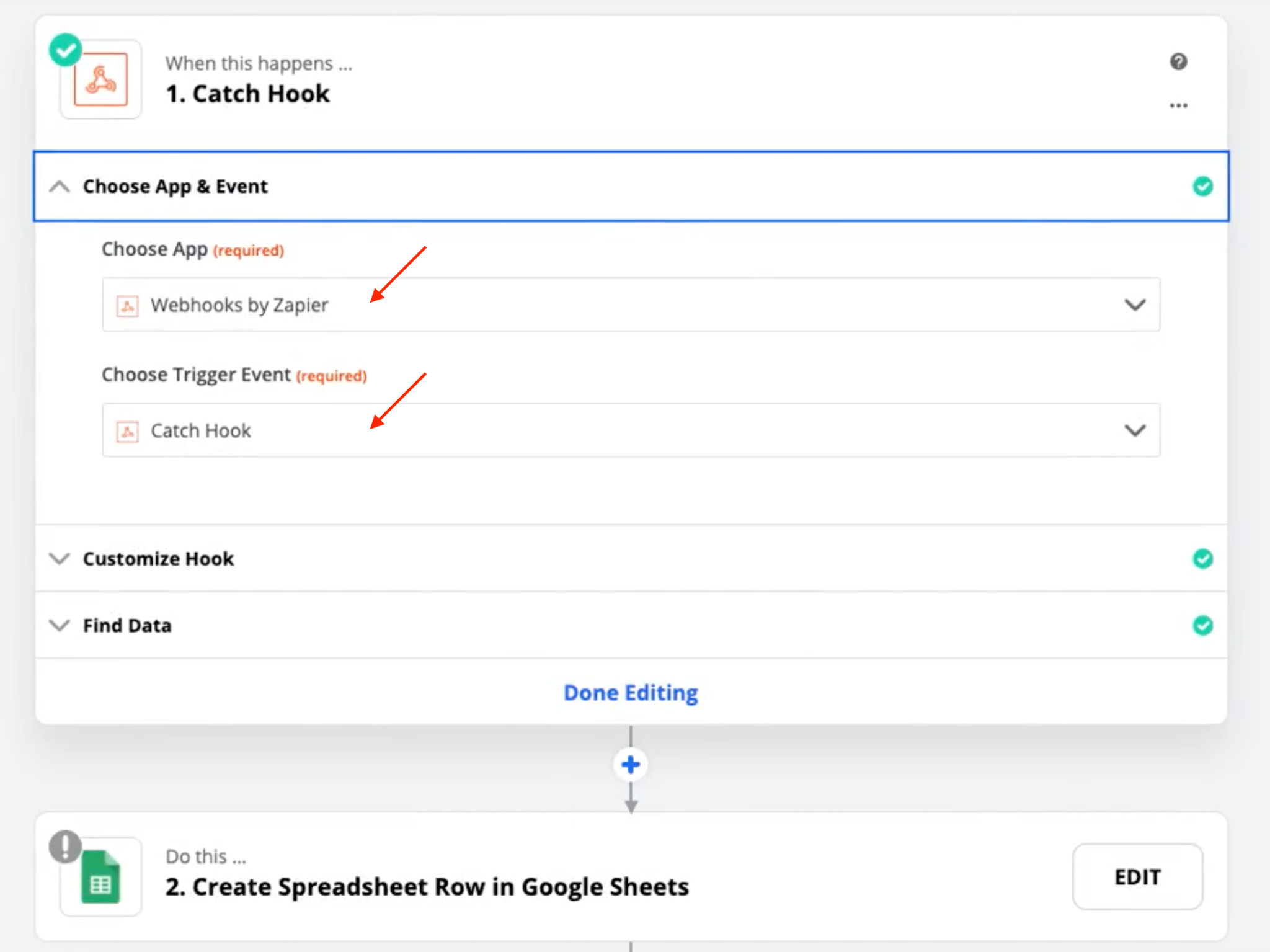
- In Zapier, set up your webhook accordingly so that the webhook app does the ‘catch hook’ action.
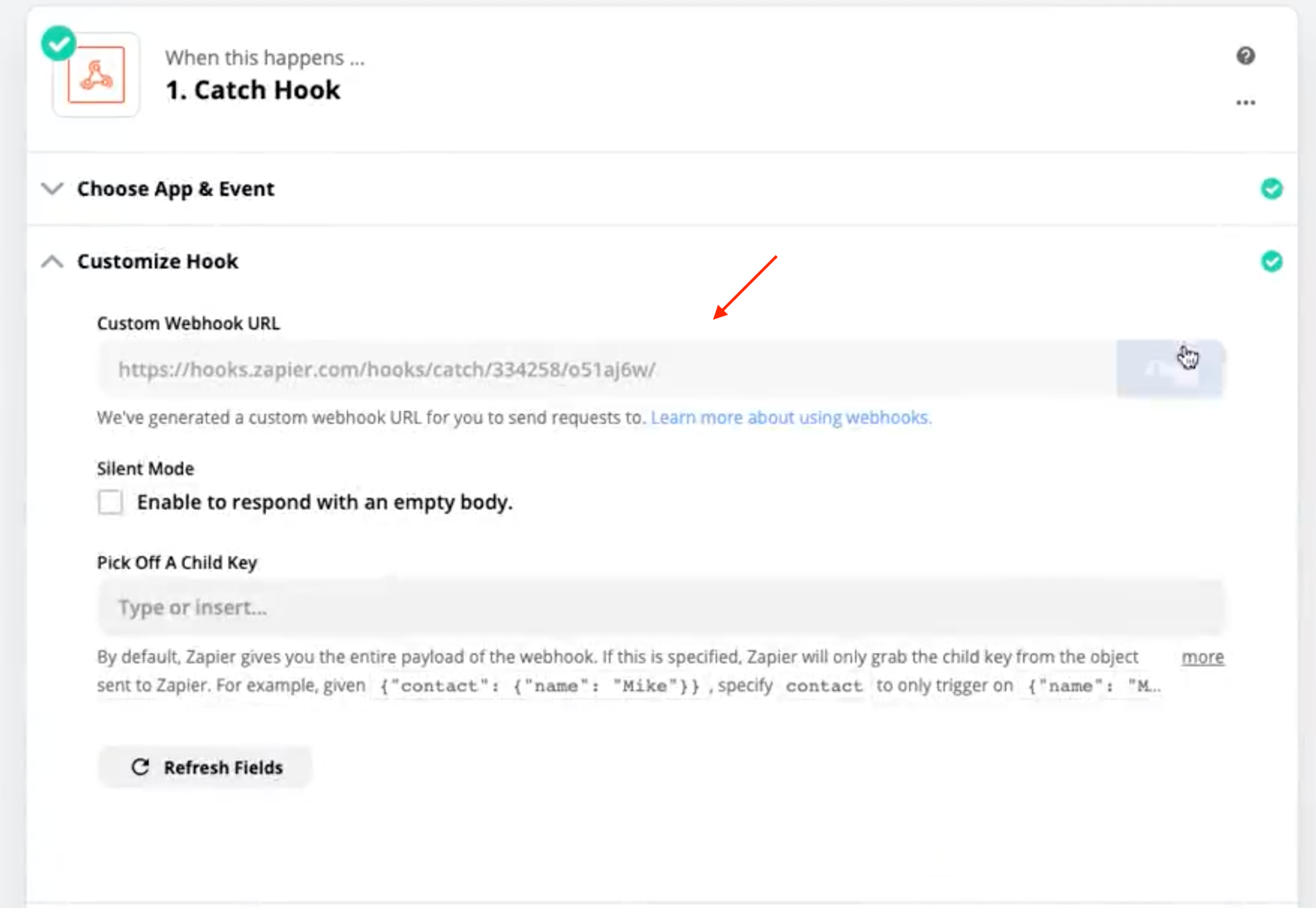
- The Custom Webhook URL will be created.
- Copy this URL and paste it into the trigger in the previous step.
- Save and activate the trigger.
Step 4: Test the Webhook
- In HighLevel, navigate to the calendar you created the appointment booking trigger for.
- Book an appointment in the calendar as a test.
- Back in Zapier, click “Find Data” to retrieve the test appointment data you just submitted.

- Now in Zapier, you can “Create Spreadsheet Row in Google Sheets”.
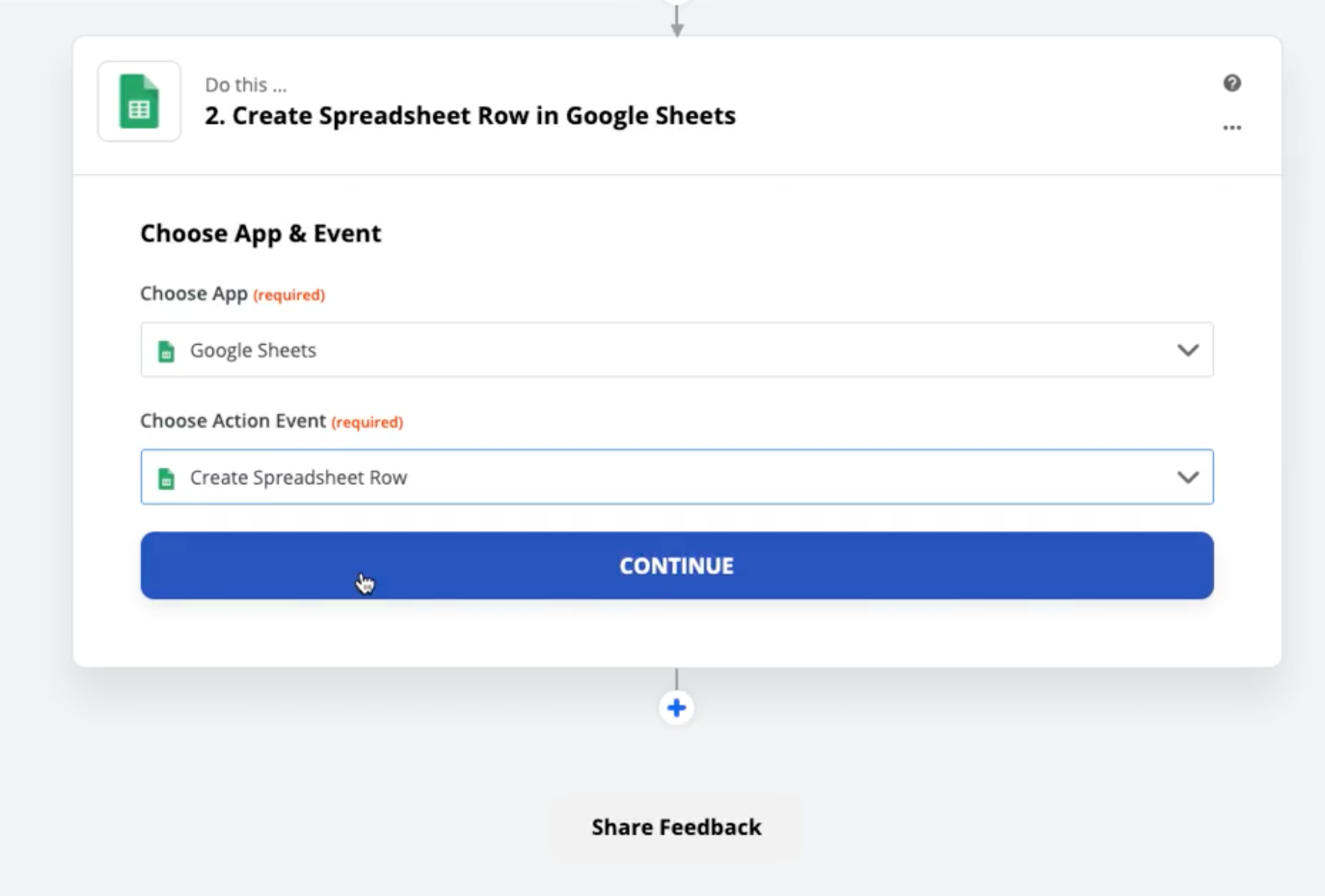
- Map the fields appropriately. Here you’re essentially telling Zapier to pull the first name to the First Name column, last name to the Last Name column, etc. from the webhook.
- Click Continue > Test & Continue > Done Editing.
- Your Zap is now ready!

- Navigate to Google Sheets to confirm it is working correctly, and you’re all set.