Using a Video Element in HighLevel’s Funnel Builder


Key Takeaways
- One of the most useful elements within HighLevel’s funnel builder is the Video Element.
- In this article, we will cover how to utilize the video element and set it up correctly.
One of the most useful elements within HighLevel’s funnel builder is the Video Element. In this article, we will cover how to utilize the video element and set it up correctly.
Within HighLevel’s funnel builder, once you’ve added a video, you’ll see “Video Settings” on the left side of the screen. There are 2 tabs – General and Advanced. Toggle between the sections of settings to customize the image as you wish.
Step 1: Navigate to Image Settings > General
Tired of Being the Admin, the Marketer, and the Closer?
You didn't start your business to spend hours building funnels, managing calendars, and chasing follow-ups inside HighLevel. What if someone else handled all of that for you?
Our HighLevel-trained virtual assistants know the platform inside and out — workflows, pipelines, social scheduling, reporting — so you can focus on closing deals and growing your business. Starting at only $164 per week.
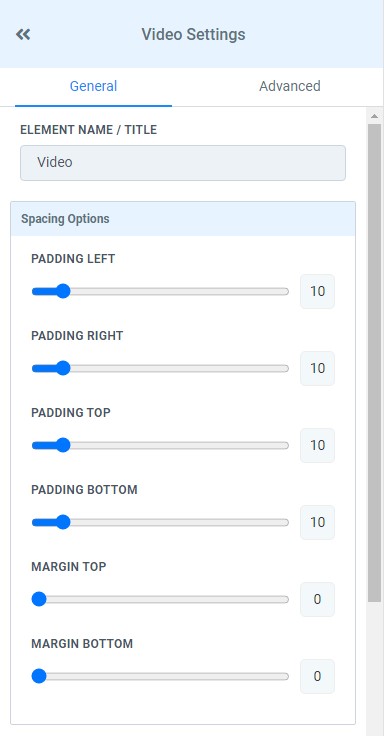
- Similar to the Image Element, the Video Element has settings to add or reduce padding and margins. Adding spacing to the Video Element can change the dimensions of the Video in the funnel itself.
- In order to have a proper functioning video in the Video Element, you will need to choose the correct Video Type (Vimeo, Youtube, Wisitia) and then enter the correct video URL. When these fields are filled out correctly, the video will populate immediately in the Video Element.
- It is important to decide the settings you would like to use for the Video Element. There are options within the settings for Auto Play and Controls. Different funnels call for different Video Element functions.
- If you would like a fixed size for the Video Element, the Width setting can be adjusted to three different sizes.
Step 2: Navigate to Image Settings > Advanced
- In the Advanced section, you can customize the border and width.
- You can also customize the mobile and desktop displays.
- The CSS selector is also in this section.
The Complete Operator's Playbook
Weekly strategies from top-performing agencies
Join 5,000+ operators who get weekly tutorials, templates, and strategies that are actually working right now.
Matt @ HLPT
Founder, HL Pro Tools
Matt and his team of 250+ are known for making it easy to win with GoHighLevel. They bundle tools, trainings and team time for a complete solution. You can use them for all your HighLevel needs from white label support to done-for-you fractional marketing services.
Related Articles
HighLevel Funnels 101: The Complete Guide to Building and Launching Your First Funnel
Learn how to build and launch funnels in HighLevel. This complete guide covers funnel templates, page editing, domain setup, form integratio
Matt @ HLPTCustomizing Funnel and Website Colors in HighLevel
Within HighLevel’s funnel or website builder, you can completely customize each step, including colors, fonts, and more. Follow these steps
Matt @ HLPTConverting Funnel Steps and Website Pages Within HighLevel
If you want to convert or import a funnel or website page into a new funnel or website you are building in HighLevel, you can do so using th
Matt @ HLPT