HighLevel Mailgun Setup – Overview


This article will walk you through the process of creating your Mailgun account for HighLevel.
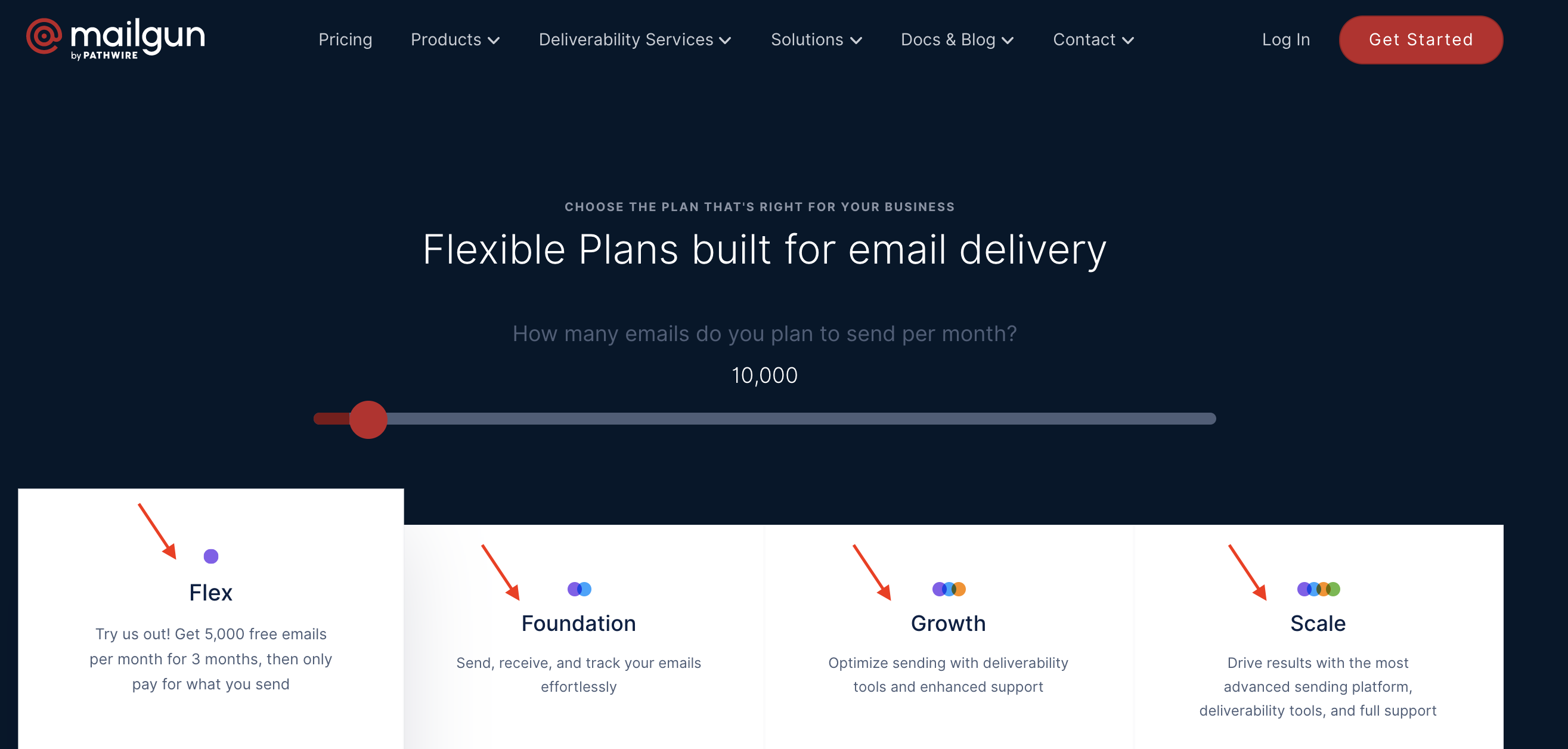
Step 1: Select a Plan and Create an Account.
- Visit www.Mailgun.com and choose the account that’s right for you.
- Mailgun offers a variety of plans from a complimentary trial plan to different paid options.
- NOTE: Plans with a dedicated IP address are best for deliverability of your emails.
Step 2: Create your subdomain in Mailgun
Tired of Being the Admin, the Marketer, and the Closer?
You didn't start your business to spend hours building funnels, managing calendars, and chasing follow-ups inside HighLevel. What if someone else handled all of that for you?
Our HighLevel-trained virtual assistants know the platform inside and out — workflows, pipelines, social scheduling, reporting — so you can focus on closing deals and growing your business. Starting at only $164 per week.
- Log in to your Mailgun account and your DNS manager (i.e. Godaddy, Cloudflare, etc)
- Select the domain you want to use for Mailgun from a domain you already own or have purchased. You will set-up a subdomain for Mailgun so it’s ok to choose a domain that is already being used.
- Navigate to your Mailgun account, select Domains from the menu at the top. Then click Add New Domain.
- Create a subdomain such as replies.yourdomain.com or mg.yourdomain.com and enter it in the Domain Name field.
- You can leave all other settings as default.
- Click Add Domain
Step 3: Setup the Subdomain Records in Your DNS Manager
- In Mailgun, you will see the DNS entries; 2 TXT records, 2 MX records, and 1 CNAME record. Go into your DNS manager where you will set up the DNS entries.
- Navigate to the DNS record section for the domain you are using within Mailgun. You will now set up the 5 DNS records to ensure proper sending, replies and tracking.
- Follow directions in Mailgun. Records are unique to your domain and Mailgun account.
- TXT Records
- These are to validate permission for Mailgun to send emails.
- MX Records
- These are so replies can be received and emails can be sent.
- CNAME Records
- This is for tracking clicks from your emails
- The host will be a sub, subdomain. For example, emails.mg or emails.reply
Step 4: After adding and saving all 5 records, click “Verify DNS Settings” within Mailgun. All 5 should have the green check mark. If any do not, check the record and re-attempt.
NOTE: If the green check marks are not showing up, you’ll want to ensure that the Host pieces for each record only have the sub-domain piece of the total record. For example, if the total record is mailo._domainkey.mg.mydomain.com, you would only put in mailo._domainkey.mg
Step 5: Connect your Mailgun account to HighLevel
- Navigate to API
- Click on Settings on the left-hand side of the Mailgun dashboard.
- Select API Keys from the menu below on the left-hand side.
- On the following page, under the API Keys section, you’ll see your Private API key.
- Click on the eye icon to make the full API key visible. Copy this API key.
- Submit a Support Ticket to send us your API (paste the API key in the text, from step 1 above.)
NOTE: Ensure that you approve any verification emails that are sent to your inbox as the app attempts to integrate with your email platform. If you are receiving an error message, this is often the cause.
The Complete Operator's Playbook
Weekly strategies from top-performing agencies
Join 5,000+ operators who get weekly tutorials, templates, and strategies that are actually working right now.
Matt @ HLPT
Founder, HL Pro Tools
Matt and his team of 250+ are known for making it easy to win with GoHighLevel. They bundle tools, trainings and team time for a complete solution. You can use them for all your HighLevel needs from white label support to done-for-you fractional marketing services.
Related Articles
HighLevel Email Campaigns 101: The Complete Guide to Creating and Sending Email Campaigns
Learn how to create and send email campaigns in HighLevel. This complete guide covers campaign setup, email builder, templates, audience tar
Matt @ HLPTHow To Differentiate Between Basic and Custom for RSS Headers and Items in HighLevel’s Email Builder
Within HighLevel’s Email Builder, you may be using the RSS Header or RSS Item elements to automatically update information across sites. The
Matt @ HLPTHow to Connect SendGrid as your SMTP Service in HighLevel
If you are using SendGrid for emails, you can connect your account to HighLevel to integrate it and send emails directly through HighLevel.
Matt @ HLPT