How To Create An Appointment Confirmation And Appointment Reminders Campaign In HighLevel


Appointment confirmation and reminder campaigns can be used to confirm appointments and nurture the leads with reminders up until the appointment time.
Step 1: Create the Appointment Confirmation Campaign In HighLevel
- Navigate to Campaigns and create a campaign.
- If you want a Confirmation Step to occur (which is optional), add in an email/SMS/messenger event with language confirming the appointment. Have this event send out immediately.
Tired of Being the Admin, the Marketer, and the Closer?
You didn't start your business to spend hours building funnels, managing calendars, and chasing follow-ups inside HighLevel. What if someone else handled all of that for you?
Our HighLevel-trained virtual assistants know the platform inside and out — workflows, pipelines, social scheduling, reporting — so you can focus on closing deals and growing your business. Starting at only $164 per week.
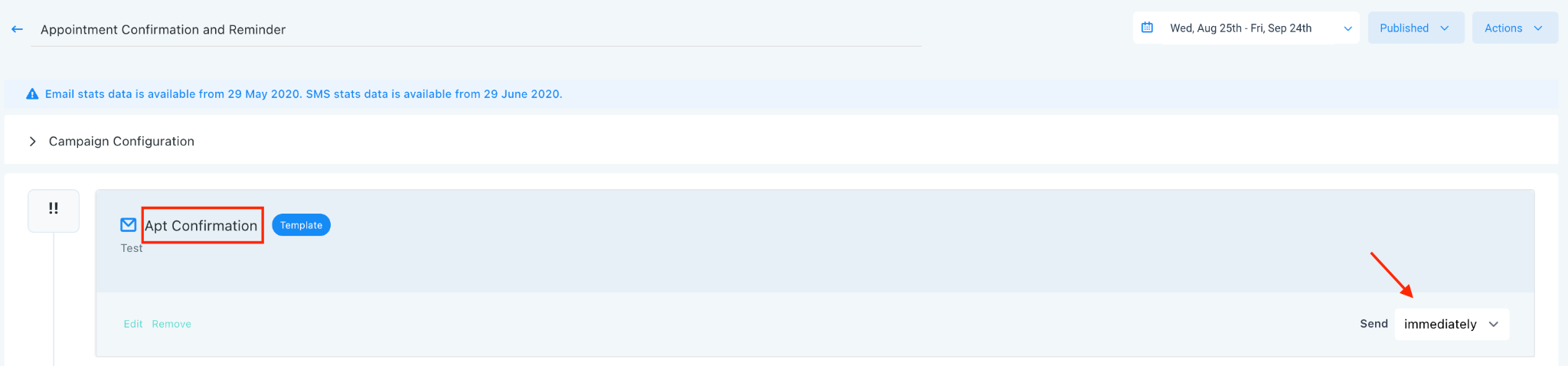
- Then, create the subsequent event(s), which would be your reminder(s). You’ll need to use the “before” setting so the event(s) will automatically work off of the appointment time and will send exactly X hours/days/minutes before the appointment.
- For example, you set up an email to send 48 hours before, and it will send 48 hours before the scheduled appointment time. You can do this for both SMS and email reminders within the same campaign and using the same type of set-up. (It is common to do both an email and SMS reminder.)
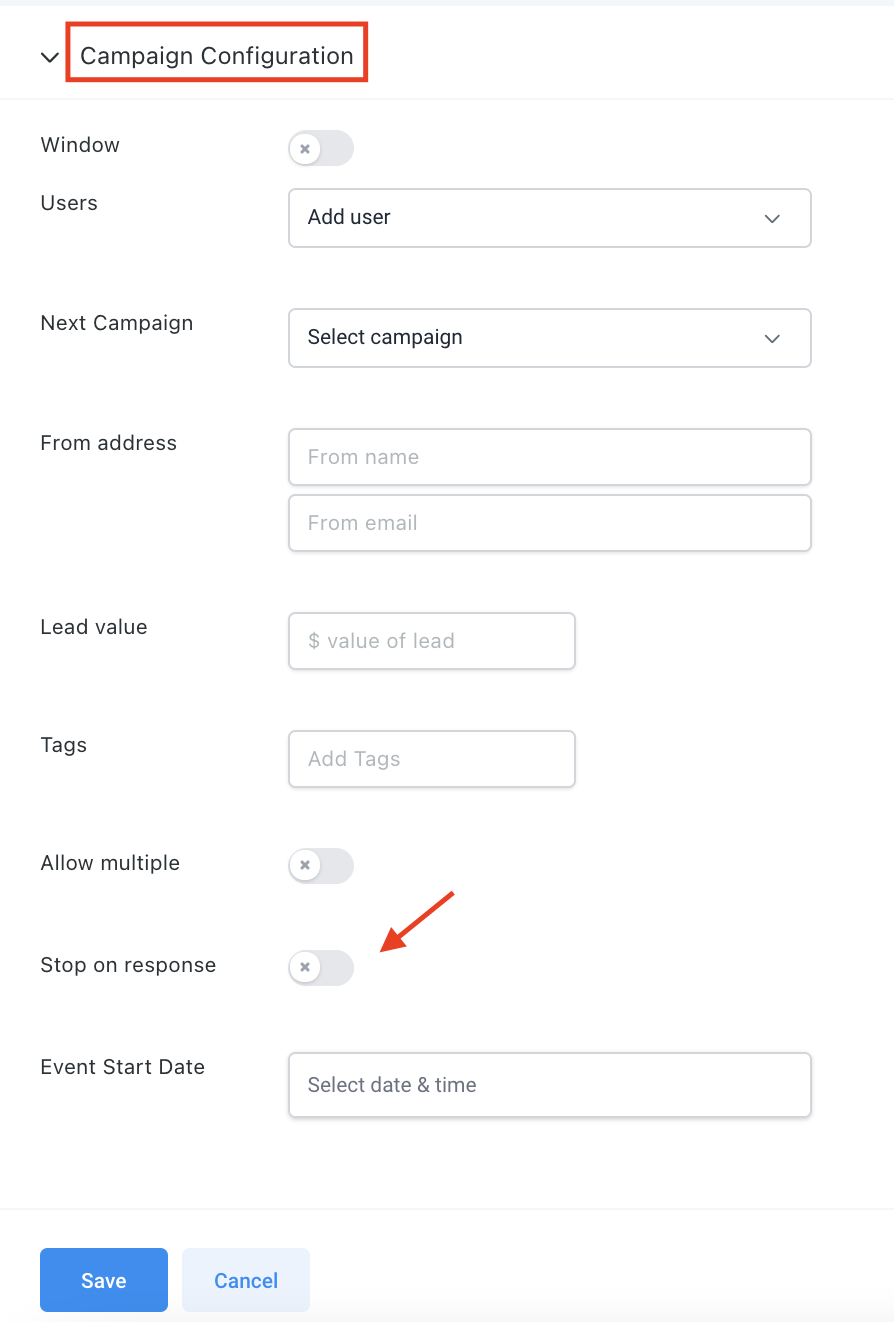
- To ensure that a lead continues to get reminders, even if they reply to the campaign, ensure that you toggle off the “Stop on response” in Campaign Configuration.
- This is necessary for a reminder campaign because even if a lead responds to confirm the appointment, it doesn’t necessarily mean that you will want to stop sending them the subsequent reminders.
- Once you’re done, make sure the campaign is published.
NOTE: If you need to add a one-off lead to the confirmation and reminder campaign, you can do that in the Conversations section or in the Contacts section. Ensure that the appointment is booked before adding them to the campaign. Click the +Add icon to add the campaign.
The Complete Operator's Playbook
Weekly strategies from top-performing agencies
Join 5,000+ operators who get weekly tutorials, templates, and strategies that are actually working right now.
Matt @ HLPT
Founder, HL Pro Tools
Matt and his team of 250+ are known for making it easy to win with GoHighLevel. They bundle tools, trainings and team time for a complete solution. You can use them for all your HighLevel needs from white label support to done-for-you fractional marketing services.
Related Articles
How to Create and Use the Google My Business Campaign Step In HighLevel
Google My Business (GMB) Messaging is a feature that allows you to communicate with potential customers. When someone Googles a category of
Matt @ HLPTHow To Enable or Disable the “Allow Multiple” feature in HighLevel Campaigns
The “Allow Multiple” feature ensures that a lead or contact either can or cannot enter the same campaign multiple times. This setting can be
Matt @ HLPTHow To Test A HighLevel Campaign
Testing a campaign is a simple way on how to check what your campaign looks like to a lead. It’s a great way to do a quality check on what y
Matt @ HLPT