How To Use The “Go To” Function in Workflows within HighLevel


HighLevel’s “Go To” Workflow action can be added to the end of a Workflow path to send the contact to any given point in a specific path.
NOTE: The action can only be used at the end of a Workflow path.
Step 1: Using the “Go To” Workflow Action in HighLevel
- Navigate to Workflows within HighLevel.
- Click into the Workflow you wish to update.
- Add an action and choose “Go To” from the list.
- Click “Save”.
- A Green circle will appear under the action in the Workflow builder drag and drop it to the action you wish to direct the path to.
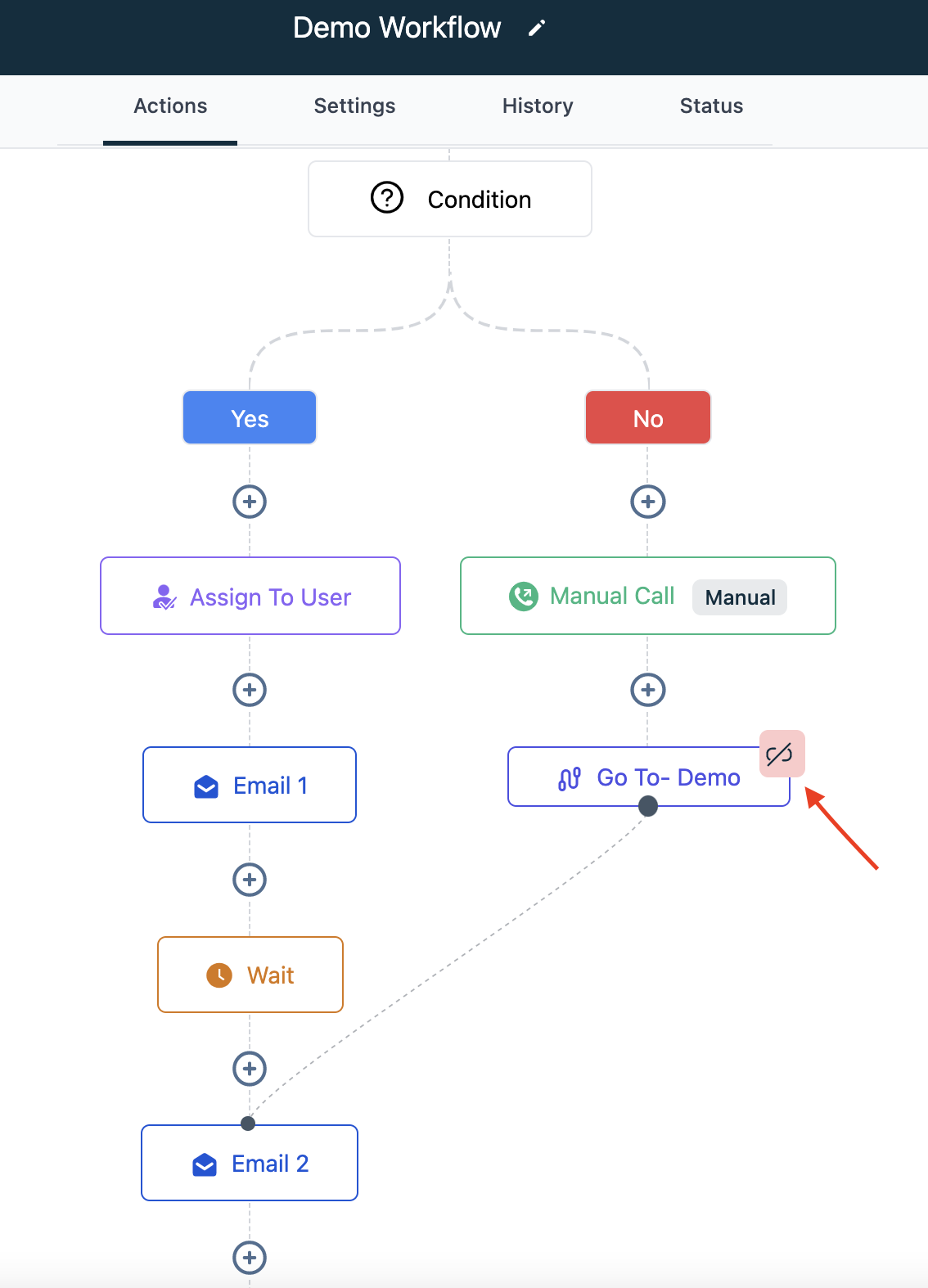
- You’ll then see this icon and the dotted icon, indicating the “Go To” action is set up in the path.
The Complete Operator's Playbook
Weekly strategies from top-performing agencies
Join 5,000+ operators who get weekly tutorials, templates, and strategies that are actually working right now.
Matt @ HLPT
Founder, HL Pro Tools
Matt and his team of 250+ are known for making it easy to win with GoHighLevel. They bundle tools, trainings and team time for a complete solution. You can use them for all your HighLevel needs from white label support to done-for-you fractional marketing services.
Related Articles
HighLevel Automated Follow-Up 101: The Complete Guide to Automatic Email and SMS Sequences
Learn how to set up automatic email and SMS follow-up in HighLevel. This complete guide covers workflow triggers, actions, timing, templates
Matt @ HLPTLoop Lockouts
Sometimes you may have a loop created in HighLevel accidentally when two actions are set to feed into one another, or feed back into itself
Matt @ HLPTMembership Triggers Overview for HighLevel’s Workflow Builder
The membership triggers within HighLevel’s Workflows allow you to automate features using “if, then” scenarios so that “if” something occurs
Matt @ HLPT