Using HighLevel’s Conversion List for Google Ads with Triggers and Workflows


Follow these steps to use HighLevel’s Conversion List for Google Ads with your Triggers and Workflows:
Step 1: Adding the Conversion action in your Google Ads account
- Within your Google Ads account, navigate to Tools & Settings from the menu.
- Click “Conversions” under the Measurement menu.
- Click “+New Conversion Action” to add.
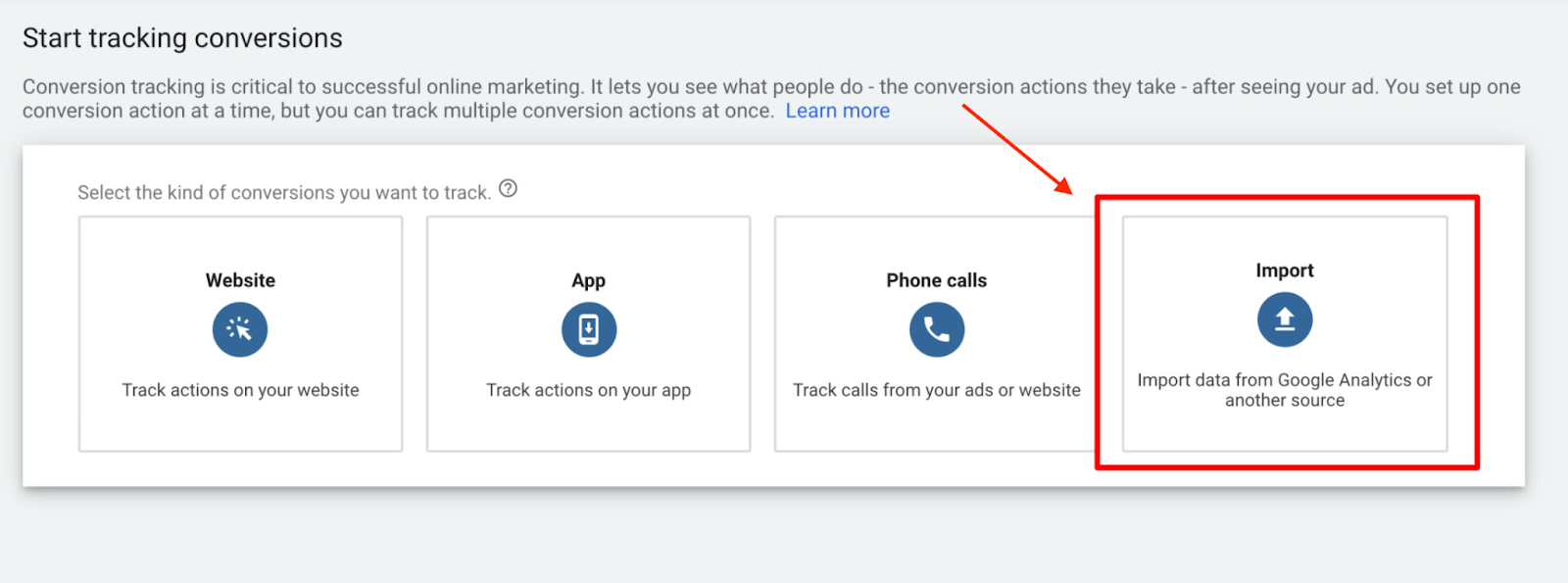
- To start tracking conversion, choose the import option from the list that appears.
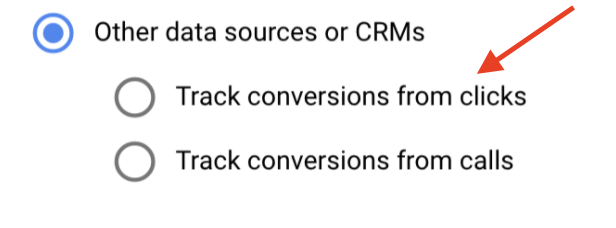
- NOTE: Choose what you want to import and select the right button (Google Analytics UA, Google Analytics 4 properties, third-party app analytics, salesforce, or other). If you wish to track clicks on a page or calls initiated by the user, be sure to choose those option from the selectable choices:
Step 2: Set Up the Goals
Tired of Being the Admin, the Marketer, and the Closer?
You didn't start your business to spend hours building funnels, managing calendars, and chasing follow-ups inside HighLevel. What if someone else handled all of that for you?
Our HighLevel-trained virtual assistants know the platform inside and out — workflows, pipelines, social scheduling, reporting — so you can focus on closing deals and growing your business. Starting at only $164 per week.
- In the “Goal and action optimization” dropdown, choose “Imported Lead”.
- For the Conversion name, match the name to exactly what will be in your Workflow (Step 3 below).
- Select a Value. You can use same, different, or don’t use any value.

- Determine the count, either “every” or “one”.

- Determine the Click Through conversion window.
- Set this to 90 days and set the Attribution Model as “First click”
Step 3: Setting up the Workflow Action In HighLevel
- Within the Workflow, add a step/action for “Add to Google Adwords”
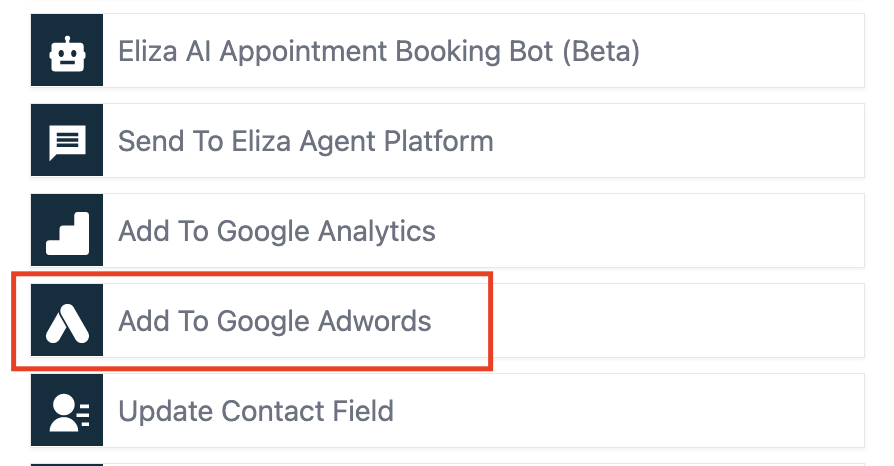
- Select “Other” for Conversion.
- Insert the Conversion name (exactly as named in Step 2 above).
- Click Save and Publish to confirm your changes.
NOTE: In order for the conversion to pass through to Google Ads, the contact record/opportunity must have been created from a URL with a gclid parameter. Also, it may take approximately 24 hours for the conversion list to populate.
The Complete Operator's Playbook
Weekly strategies from top-performing agencies
Join 5,000+ operators who get weekly tutorials, templates, and strategies that are actually working right now.
Matt @ HLPT
Founder, HL Pro Tools
Matt and his team of 250+ are known for making it easy to win with GoHighLevel. They bundle tools, trainings and team time for a complete solution. You can use them for all your HighLevel needs from white label support to done-for-you fractional marketing services.
Related Articles
HighLevel Automated Follow-Up 101: The Complete Guide to Automatic Email and SMS Sequences
Learn how to set up automatic email and SMS follow-up in HighLevel. This complete guide covers workflow triggers, actions, timing, templates
Matt @ HLPTLoop Lockouts
Sometimes you may have a loop created in HighLevel accidentally when two actions are set to feed into one another, or feed back into itself
Matt @ HLPTMembership Triggers Overview for HighLevel’s Workflow Builder
The membership triggers within HighLevel’s Workflows allow you to automate features using “if, then” scenarios so that “if” something occurs
Matt @ HLPT