What’s the If/Else Conditional Event and How to Use It in Workflows within HighLevel


Key Takeaways
- Using the If/Else Workflow condition allows you to create different paths within a Workflow in HighLevel.
- This allows you to customize Workflows on a deeper level to enhance your business.
- There are numerous options for customizing the If/Else condition by adding one or multiple “and” & “or” filters to customize out the action as you need.
Using the If/Else Workflow condition allows you to create different paths within a Workflow in HighLevel. This allows you to customize Workflows on a deeper level to enhance your business. There are numerous options for customizing the If/Else condition by adding one or multiple “and” & “or” filters to customize out the action as you need.
Perhaps you want one set of actions to happen for contacts who live in a certain geographic area, and you want a different set of actions for those in another area. Or maybe you want people with an email address to receive a series of email follow ups, and people without an email address to be scheduled for a series of call follow ups. Again, there are several options for customizing this condition in Workflows. Let’s take a look at how to set it up within HighLevel.

Step 1: Create a Workflow in HighLevel
- Create a new Workflow or edit an existing one.
- Set up your Workflow triggers.
Tired of Being the Admin, the Marketer, and the Closer?
You didn't start your business to spend hours building funnels, managing calendars, and chasing follow-ups inside HighLevel. What if someone else handled all of that for you?
Our HighLevel-trained virtual assistants know the platform inside and out — workflows, pipelines, social scheduling, reporting — so you can focus on closing deals and growing your business. Starting at only $164 per week.
Step 2: Add the If/Else Condition Event
- Click the + to add an action to the Workflow.
- Choose the “If/Else” condition.
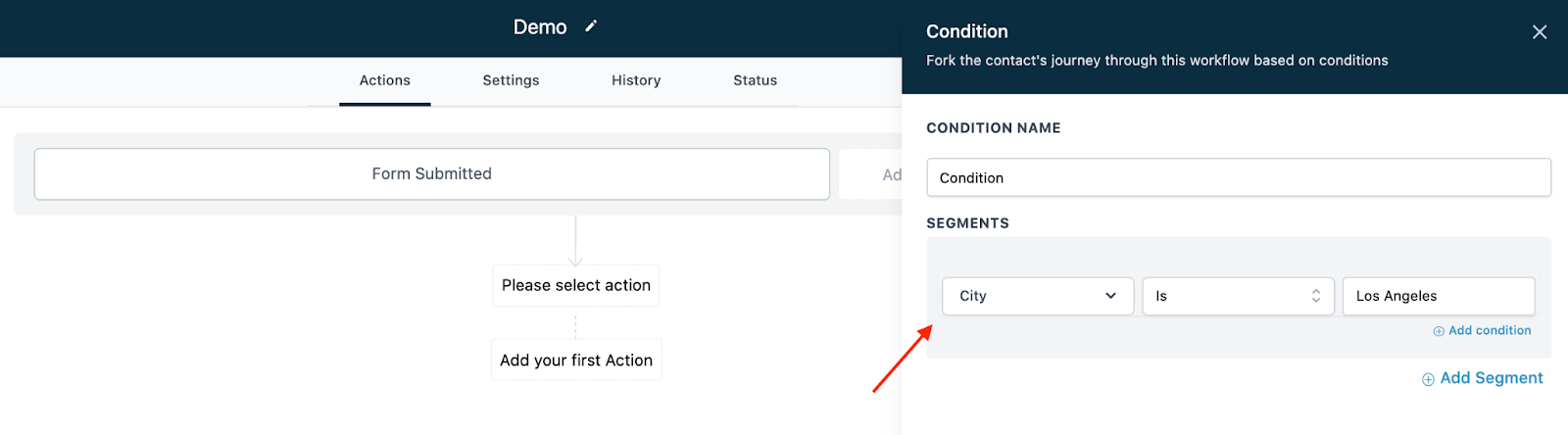
- Add one or more Segment and Operator, choosing from the dropdowns to customize the action. (In the GIF above, I set the condition so anyone with “Los Angeles” as their City, and anyone without the name Bob, would go down 1 path of the workflow. Anyone else would go down the 2nd path.)
- NOTE: You can toggle between “And” and “Or” to decide if you want 1 or more operator to function together or independently. AND implies that both conditions must be met. OR implies any one of the conditions must be met.
Step 3: Add Additional Workflow Events
- Once you’ve added the If/Else condition, you will see a split in the Workflow path with “Yes” and “No”. Based on the filters from your If/Else condition, contacts will go down one of the two paths, and you can customize additional events. In this example, anyone with Los Angeles as their city and not having Bob as their first name, would receive a SMS under the “Yes” path. Anyone in the “No” path would receive an email and a manual call.

- Save and confirm any changes to your Workflow.
- Switch it from Draft > Publish mode in order for it to function.
The Complete Operator's Playbook
Weekly strategies from top-performing agencies
Join 5,000+ operators who get weekly tutorials, templates, and strategies that are actually working right now.
Matt @ HLPT
Founder, HL Pro Tools
Matt and his team of 250+ are known for making it easy to win with GoHighLevel. They bundle tools, trainings and team time for a complete solution. You can use them for all your HighLevel needs from white label support to done-for-you fractional marketing services.
Related Articles
HighLevel Automated Follow-Up 101: The Complete Guide to Automatic Email and SMS Sequences
Learn how to set up automatic email and SMS follow-up in HighLevel. This complete guide covers workflow triggers, actions, timing, templates
Matt @ HLPTLoop Lockouts
Sometimes you may have a loop created in HighLevel accidentally when two actions are set to feed into one another, or feed back into itself
Matt @ HLPTMembership Triggers Overview for HighLevel’s Workflow Builder
The membership triggers within HighLevel’s Workflows allow you to automate features using “if, then” scenarios so that “if” something occurs
Matt @ HLPT